
 Safe Privacy Mask · MANUAL
Before you send, mask it.
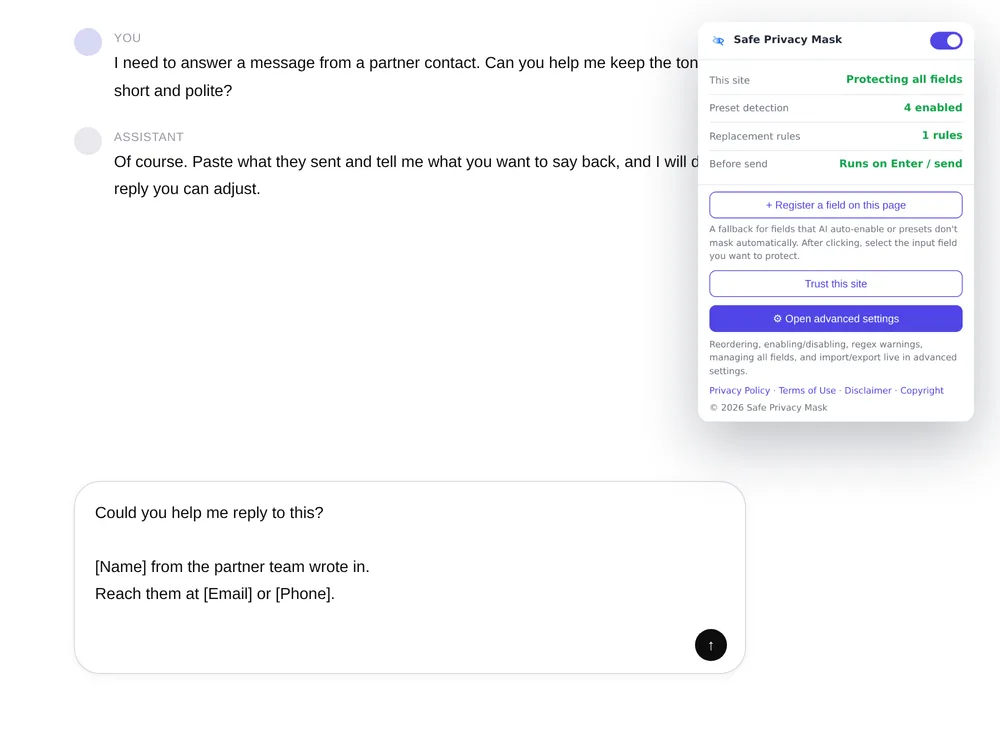
Replace detected information, such as email addresses, inside an input box. You can register names or company names as your own replacement rules. Choose a task to follow the setup and usage steps.
Getting started
From installation to your first check in an AI chat.
Add to Chrome
Open the Safe Privacy Mask page in the Chrome Web Store and select “Add to Chrome.” If prompted, choose “Add extension.” No account is needed.
- Use Chrome on a computer.
- It is free, and you can remove it if it does not fit.
Watch the demo
Settings: what to choose and what changes
Use the three tabs to choose what to replace, where to apply it and when it runs.
Open the settings
Open Safe Privacy Mask from Chrome’s extensions menu and choose “Open advanced settings”. Select Detection & replacement, Advanced, or Settings.
Save and apply
Switches and selections save automatically. After typing text or numbers, leave the field to commit the change. Settings stay in this browser.
Master switch and detection
- Enable protection
- How to set it
Turn on the switch at the top.
- What happens
Off stops replacements. Even when on, trusted sites and fields outside the configured scope are excluded.
- Preset detection / Country or region
- How to set it
Select a region and toggle the detection types shown.
- What happens
The region filters the choices displayed. Enabled types from other regions still apply. Register names and company names as custom rules.
- Custom replacement rules and categories
- How to set it
Select a category and add a rule. For example, set Before to Alex Example and After to [NAME].
- What happens
Enabled matching words are replaced with your chosen text. An empty replacement deletes the matched word. Turn a rule off to keep it saved without applying it.
- Add or remove categories
- How to set it
Add a category to organize rules. Custom categories can be renamed or deleted.
- What happens
Categories organize the list; enabled rules in other categories still run. Confirming a category deletion also deletes its rules.
- Try a fictional example
- How to set it
Open the trial and run masking on its sample.
- What happens
The trial uses its own standard detection settings, not your saved rules. Test your own configuration with fictional text in a targeted field on a supported page.
Advanced: scope and rules
- Per-site enable / disable
- How to set it
Add a domain and choose all input fields or disabled.
- What happens
This changes scope for that site. Removing the entry returns it to behavior determined by AI auto-enable, registered fields and other settings.
- AI site list
- How to set it
Use a site’s exclusion control to stop masking there.
- What happens
This adds a disabled per-site rule. Turning the master switch back on does not remove that exclusion.
- Trusted sites
- How to set it
Add a host to stop masking there; remove it to lift the exclusion.
- What happens
Matching sites are excluded even if other scope settings would enable them. After removal, check that the master switch and field scope are enabled.
- Regular expression rules
- How to set it
Add a rule such as EMP-[0-9]{4} with replacement [EMPLOYEE ID].
- What happens
Matching strings are replaced. Invalid expression edits are not saved. Review patterns that produce a performance warning.
- Regex timeout / Automatically disable heavy expressions
- How to set it
Normally keep the default 50ms and automatic disabling enabled.
- What happens
Asynchronous expression processing stops when its time limit is exceeded and attempts to disable the responsible heavy rule. This does not mean every rule completed. The synchronous pre-send path behaves differently.
- Maximum scan length
- How to set it
Normally keep the default 200000.
- What happens
Text exceeding the limit can be skipped entirely and remain unchanged. Reducing the limit does not guarantee that its beginning will be masked.
- Backup / sharing
- How to set it
Export a JSON file. To restore it, choose that file with Import.
- What happens
Imported settings overwrite corresponding current values and reload the page. Review imported rules and trusted sites. Temporary pauses are not transferred. Exported files contain your registered words.
Settings: timing and fields
- Real time / Delay
- How to set it
Enable it and choose the delay in milliseconds after typing stops. The default is 120ms.
- What happens
Text is replaced after that delay; increasing it postpones replacement.
- On blur / On paste / Before send
- How to set it
Enable each desired trigger. For pre-send only, turn off the other three triggers.
- What happens
Masking runs when the corresponding action is detected. With all triggers off, those actions do not start masking. Some sites’ send actions cannot be detected.
- Ignore full-width / half-width differences
- How to set it
Enable width normalization.
- What happens
Custom word matching treats width variants alike. A rule for secret can also match secret.
- Auto-enable on AI / chat sites
- How to set it
Enable this to target supported AI sites automatically.
- What happens
Supported sites’ fields become targets. Turning it off keeps manual site rules and registered fields.
- Registered input fields
- How to set it
On the target page, open the popup, choose Register an input field, and click the field. In settings, choose this URL or the whole site.
- What happens
The registered field is targeted within that scope. Whole site reuses that field registration across the site; it does not target every field. Deleting the entry removes that registration.
See text change inside the input box.
This practice demo runs only on this page. The text you enter is not sent anywhere. As in the product’s default setting, replacement happens about 0.12 seconds after typing stops.
Information to detect
Switches show first-install defaults when Chrome’s UI language is Japanese.
Your own words
Replace names or other words you choose. Leave After empty to remove a word.
When to replace
Replaces about 0.12 seconds after typing stops and immediately after pasting (product default).
Ask an AI for help without sharing every name.
The AI usually needs the situation, rather than the names or places involved. These examples show rules you might register for each situation.
Care for a parent
You want to ask about care applications and what to tell a hospital, without sharing your parent’s name, hospital or care manager’s contact details.
My mother Hanako Yamada (78) visits Sakura General Hospital. Her care manager’s phone is 090-1111-2222 and email is care.office@example.jp. What should we prepare for a care application?
My mother [Mother] (78) visits [Hospital]. Her care manager’s phone is [Phone] and email is [Email]. What should we prepare for a care application?
Hanako Yamada → [Mother]Sakura General Hospital → [Hospital]
The final check is yours.
Detection has limits
Patterns and your rules can miss names or addresses written in other ways. Unrelated numbers may also be masked.
Replacement is not undone automatically
It changes the text in the input box. Keep the original elsewhere first if you need it.
It does not send automatically
You decide whether to send after replacement. Before-send replacement finishes before the send action continues.
It does not replace workplace controls
It is not a replacement for DLP, access controls or approval procedures. Follow your organization’s AI use rules.