
Safe Night Check
Let it wait for morning.
A Chrome extension that asks you to confirm before sending a Gmail message during the night hours you set.
Free, no account needed. The extension does not read your email body.
See permissions and how data is handled →USE CASES
Decide whether it can wait until morning
Before sending a late-night email, take a moment to decide whether to send it now or leave it until morning.
Finishing an email late at night
It is easy to send an email as soon as you finish writing it late at night. During the hours you set, a confirmation gives you the option to leave it and read it again in the morning.
Not wanting it to land while the other person is off
A late-night email may notify someone who is already asleep. The confirmation gives you time to consider whether to send it now or wait until morning.
Wanting a beat before a sharply worded reply
A reply or follow-up can sound stronger than you intended. When the confirmation appears, you can reread it and decide whether to edit it or choose Send anyway.
Features
Designed to stay out of your way.
During your night hours, the extension pauses the current submission and asks you to confirm. It does not change your text or send or resend anything automatically.
Night hours only
Checks appear only in your selected hours and days, while not paused.
Never reads your email
The only inputs are the clock and your settings. It never reads the body of your email.
No developer data uploads
Mail content is not sent to the developer. Hours, days and ON/OFF use Chrome Sync; pauses stay in this Chrome profile.
Never decides for you
The final call is always yours. Choose "Send anyway" and your email goes out as is.
NIGHT HOURS & SETTINGS
Night hours & settings
You decide what counts as "night."
Night hours
Set any start and end time. Ranges that cross midnight, like 22:00–06:00, are supported.
Days of the week
Every day, weekdays only, or custom. Late night belongs to the previous evening (Saturday 1:00 counts as Friday night).
Pause an hour or tonight
Review the end time before pausing all Gmail tabs in this Chrome profile. Pauses do not sync to other devices. A schedule change asks before clearing an active pause.
ON / OFF
Shows ON/OFF and the state based on settings, not proof of Gmail detection. Failed or conflicting saves distinguish the last read values from your requested change.
Display language
Auto-selected by your browser language.
Compatibility
Works on Gmail (mail.google.com), Chrome 116 or later.
HOW IT WORKS
Check before sending a late-night email
The confirmation appears only during the night hours you set. Outside those hours, email sends as usual.
Catch the late-night send
It acts only the instant you try to send an email on Gmail during your night hours.
No confirmation outside your selected hours.
Ask gently
A confirmation dialog with a sleeping crescent moon offers a choice of what to do next.
"The person you are writing to may be asleep right now. How about letting this email rest until morning, too?"
You decide
Three choices. For safety, "Back to drafts" is selected first.
"Schedule send" guides you to Gmail’s own schedule-send feature.
GET STARTED
Install & use
Install the extension, pin it to the toolbar and open its settings.
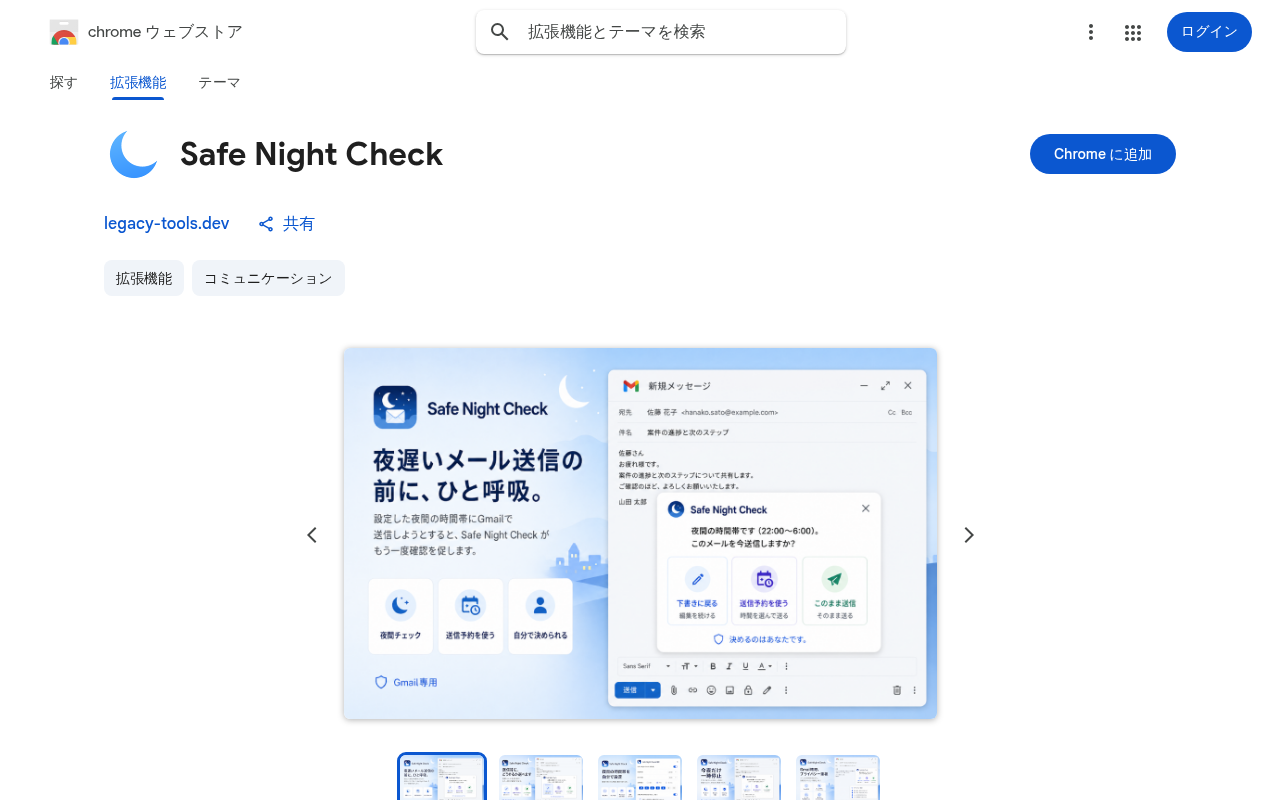
1Install
Just press “Add to Chrome” on the Chrome Web Store.
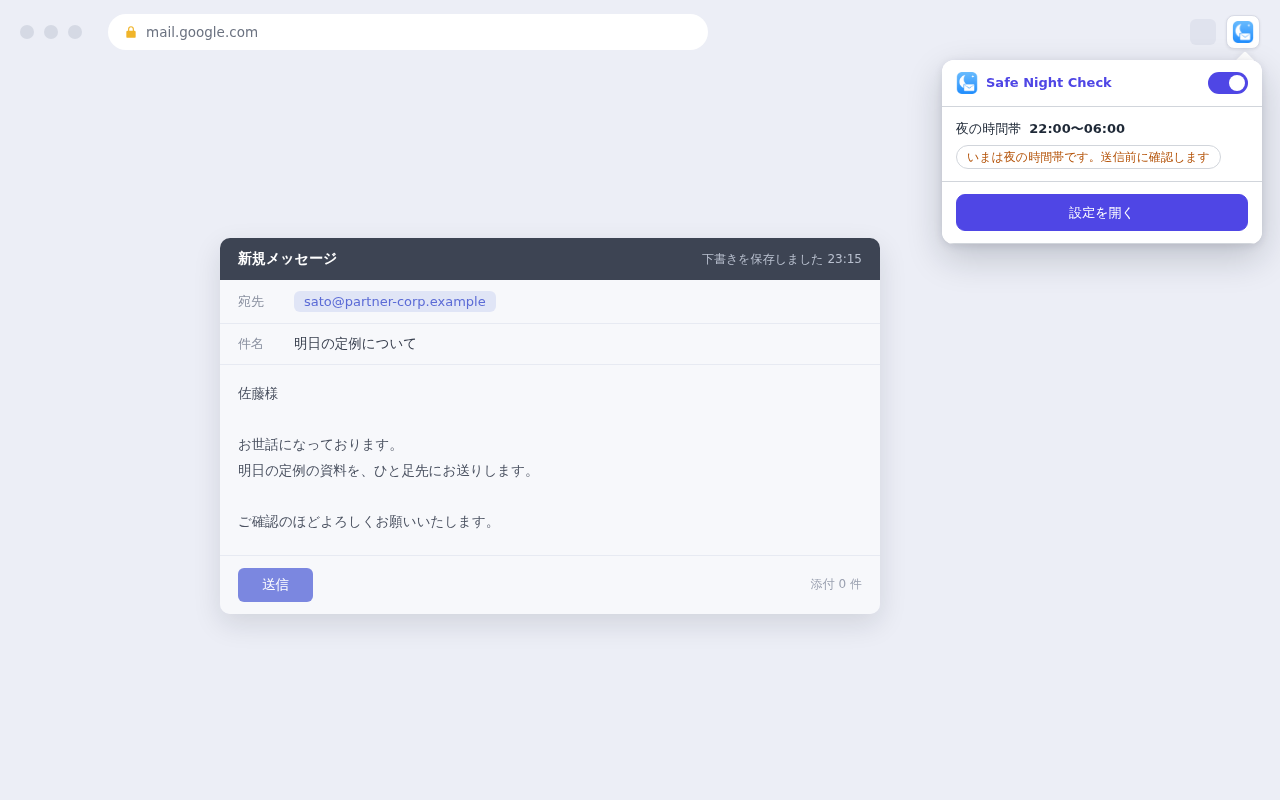
2Pin to the toolbar
Open the extensions icon (the puzzle piece) at the top-right of Chrome and pin Safe Night Check so it’s always one click away.
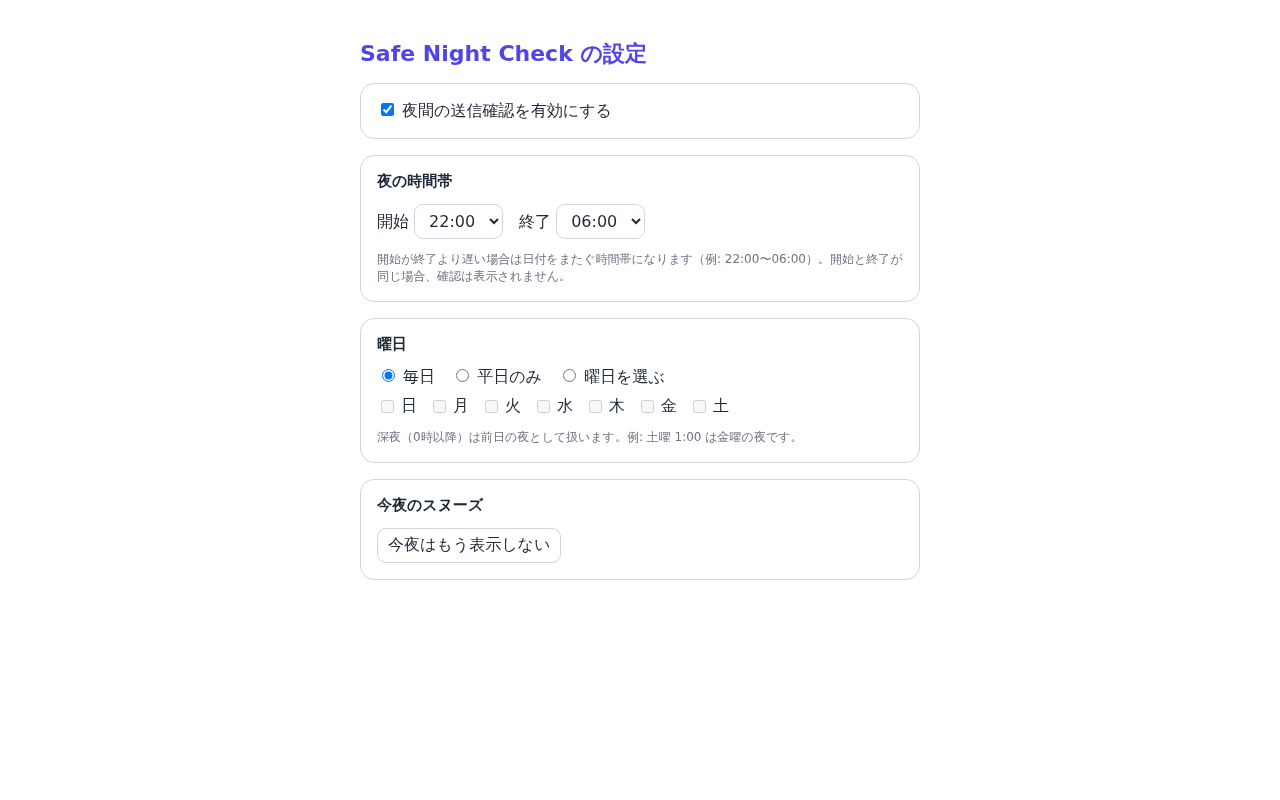
3Open the settings
Right-click the icon → “Options,” or open the settings from the popup. Adjust night hours, days, and the snooze.
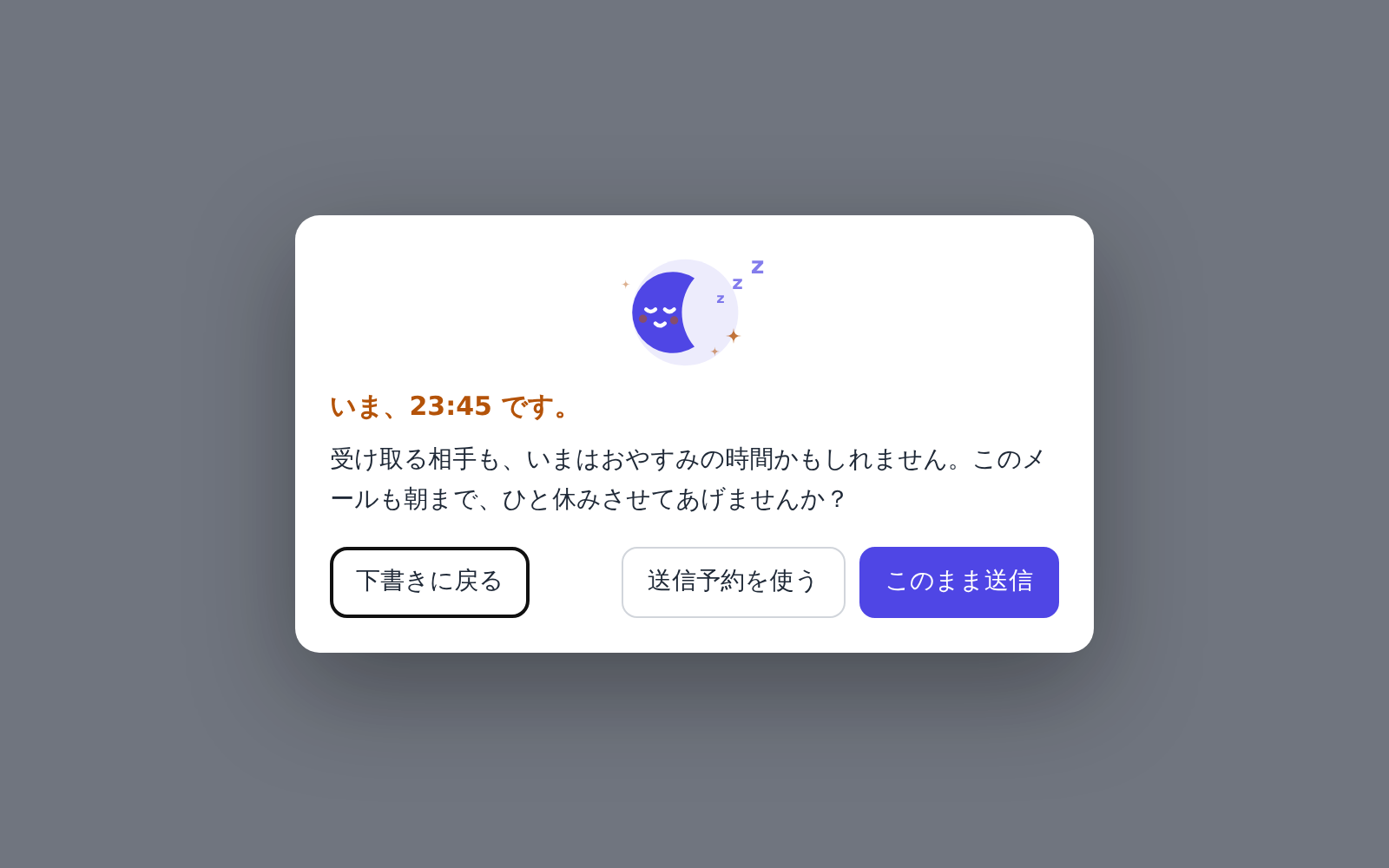
4See it in action
Try to send an email on Gmail during your night hours and the confirmation modal appears before it goes out.
Open it any time from the extensions icon (the puzzle piece) at the top-right of Chrome.
PRIVACY
Our privacy promise
The extension uses the time and your settings to decide when to ask. It does not read your email.
The body of your email never leaves this extension.
Only the time and your settings are used. There are no server requests, analytics or telemetry.
Where data lives
Hours, days and ON/OFF use Chrome Sync. Pause deadlines, migration and first-run state stay in this Chrome profile. Updates preserve valid settings and carry over a valid old pause once.
External traffic
No developer uploads, analytics or telemetry. Chrome itself may sync regular settings to other devices; the extension cannot confirm completion.
Permissions needed
Just settings storage (storage) and running on Gmail (mail.google.com) — minimal permissions only.
Frequently asked questions
MORE TOOLS
Other tools
Explore other tools you can use alongside this one.
Let it wait for morning.
Free, and it never reads your email. Add it to Chrome and start tonight.
View on Chrome Web StoreLEGAL
Before you start
Read the privacy policy and terms of use below.