
Copy & Prep Collect from several pages, tidy up, copy all at once
Collect selected text from multiple web pages with the right-click menu. Arrange the passages, tidy the line breaks and copy them all at once.
Free, no account needed. Collected text is stored on your device.
See permissions and how data is handled →USE CASES
Collect while you read, tidy afterwards
Text you collect from different tabs stays together in one list.
Reading several articles side by side
Save useful passages as you read so you do not have to find them again. Only the text you add with the right-click menu goes into the list, ready to arrange when you finish reading.
Preparing material for an AI chat
Collect the passages you need from several pages, put them in order and remove unwanted line breaks before copying them together into an AI chat.
Gathering material for a report or an email
It removes the step of moving every quote into an editor before you can start writing. Collected items can be edited in the settings tab, and an edit can be taken back to the original selection in one step.
Moving text into an issue, a ticket or a doc
Choose Markdown if the app you are pasting into supports it. Lists, tables and code keep their structure; only wrapped lines within paragraphs are joined.
Keeping track of where each passage came from
Finding a source again afterwards takes longer than collecting it did in the first place. The page title, URL and the date you added it are kept with each item and can be included in the output when you want them — off by default.
Step-by-step guides
Follow the steps for three common tasks: collecting text, preparing material for AI and fixing line breaks.
FEATURES
Tidy up what you gathered, before you paste it.
Use it when comparing sources, drafting a document or copying text into an email or ticket. Collect the passages first, then arrange them and tidy the line breaks before pasting.
Only the text you picked
It handles only what you explicitly add from the right-click menu. Page content is never scanned.
Nothing is rewritten on its own
"Tidy up" shows the before and the after side by side. Your text does not change until you press apply.
Into one, in display order
Copy all or selected items in display order, as plain text or Markdown. You can review the text and sources before copying.
Nothing leaves your device
Collected text stays on your device. The extension does not transmit it or add analytics or telemetry.
TEXT & SETTINGS
Collected text and output settings
Use the toolbar popup to copy or delete collected text. Open the settings tab to edit and reorder it. Everything is stored on your device.
Working with what you collected
Review, edit, reorder, delete and clear. An edited passage can be restored to the originally captured text in one step. Reordering uses Move up / Move down buttons.
Delete from the popup
A passage picked up by mistake can be dropped on the spot with the “×” on its row. “Clear all” at the bottom asks you to confirm before it removes everything. Neither one needs the settings tab.
Tidy up
Removes the awkward line breaks and trailing whitespace that come along when you copy from the web. Bullet lists, numbered lists, tables and code keep their structure; only wrapped lines inside a paragraph are rejoined.
Output format
Choose plain text or Markdown. Your text is copied as it is, without adding Markdown formatting.
Source (page name, URL, date added)
Kept alongside each item, but not part of the output by default. Turn on only the ones you want. A line whose value is missing is dropped rather than shown empty.
Source label language
Choose whether the labels read "ページ:" or "Page: ", independently of your browser language. While no source line is switched on, this control stays disabled.
Collecting on / off
Turning it off removes the right-click item and stops every capture. Whatever you already collected stays where it is. Switch it from the popup or the settings tab.
Interface language
Follows your browser language automatically. Japanese and English are supported.
Compatibility
Works on any Google Chrome with Manifest V3 support.
HOW IT WORKS
Collect, tidy up, bring together.
Only the text you picked is collected, and whether to tidy it is your call.
Collect with a right-click
Select text on a page and choose "Add to Copy & Prep" from the right-click menu. The toolbar badge shows how many you have.
Add from as many pages as you like, or from several places on the same page, in whatever order. The page name, URL and date are noted alongside.
Tidy up in the settings tab
Review, edit, reorder and delete. Pressing "Tidy up" shows the before and the after side by side.
Nothing changes unless you press apply, and an already tidied passage can be restored in one step.
Copy it all at once
Press Copy all or Copy selected to copy straight away. To check first, choose Review all or Review selected, look over the text and sources, then press Copy this text.
Items stay in the list after you copy them. Delete them when you no longer need them.
GET STARTED
Install and use
Add it, open it from the toolbar. Copy everything at once and delete from the popup; edit and reorder in the settings tab.
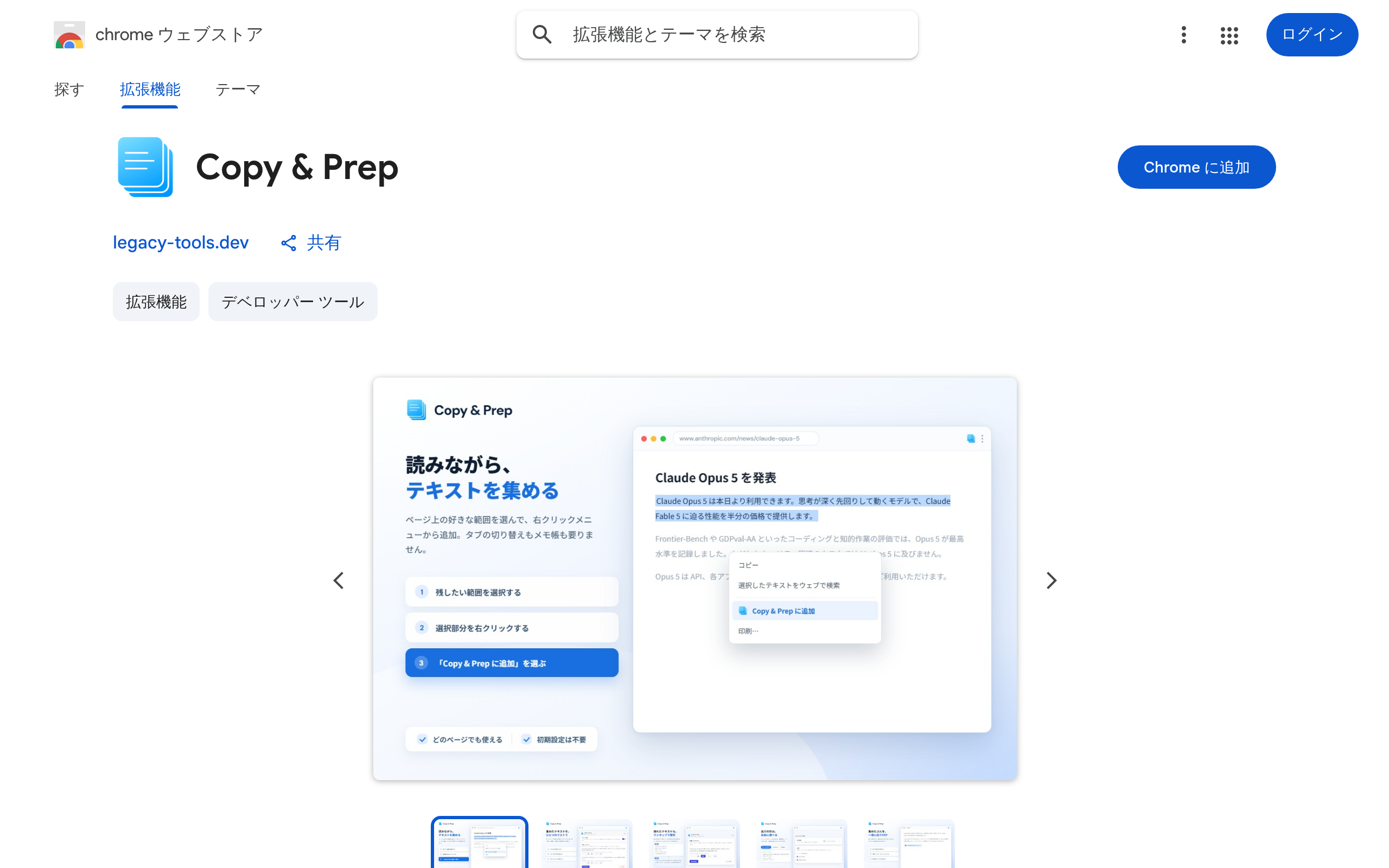
1Install
Just press “Add to Chrome” on the Chrome Web Store.
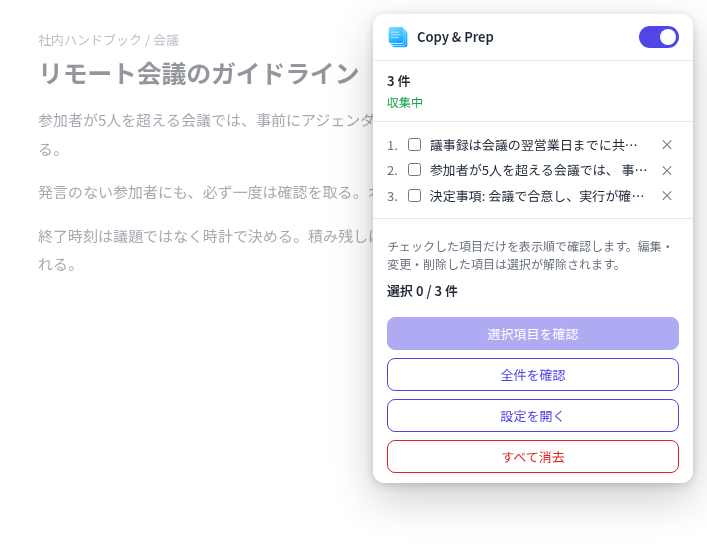
2Pin it to the toolbar
Pin the extension from Chrome’s extensions menu. In the popup, copy or review all or selected items, or delete items. Edit and reorder in settings.
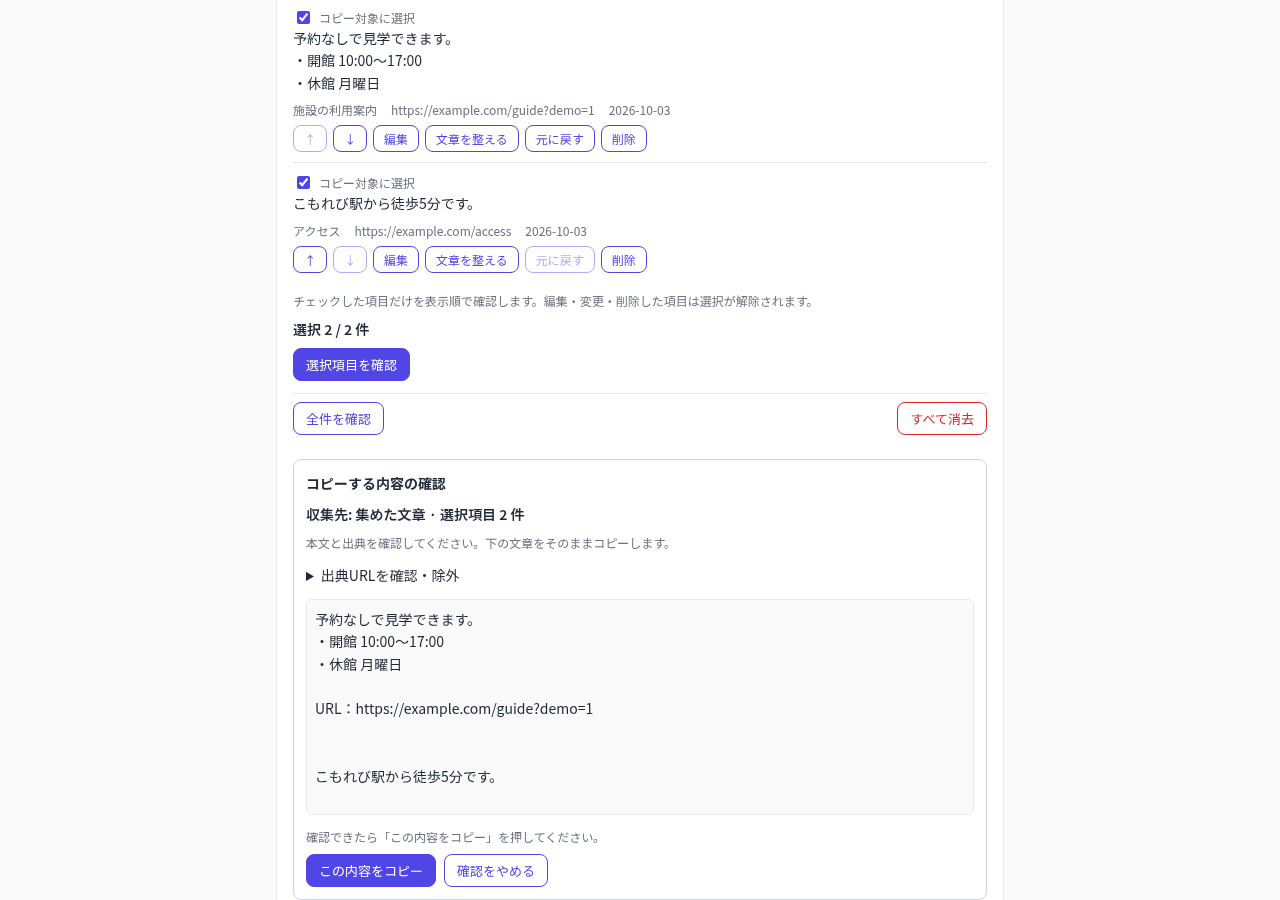
3Review text and sources
Review all or checked items. Inspect source URLs and exclude individual sources from this output without changing saved URLs.
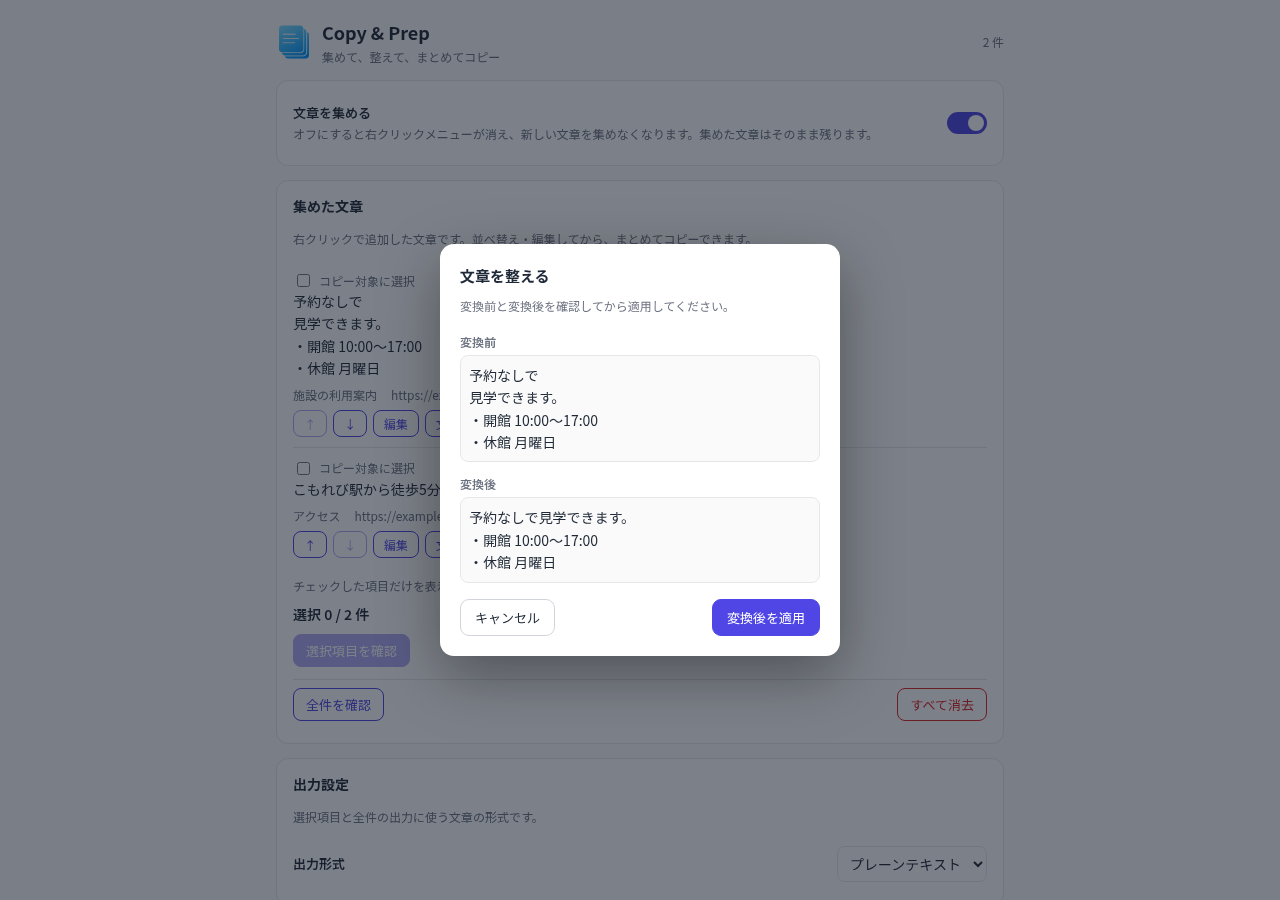
4Tidy up, then copy all
Review and apply Tidy up, then copy straight away, or review text and sources and choose Copy this text. If copying fails, select the displayed output and copy manually.
The extension has two views: the toolbar popup and the settings tab. The settings tab opens automatically when you first install it.
PRIVACY
The privacy promise
Collected text is stored in your browser. The extension does not send it to an external server.
Your collection and your settings stay in this browser. Nothing syncs.
It handles only the text you explicitly added with the right-click menu. Page content is never scanned.
Where data is stored
The selected text, the edited body, the page title, the URL, the date added and your output settings are kept in chrome.storage.local. chrome.storage.sync is not used, so nothing travels to another browser or device.
What is never stored
Whole pages or page bodies, browsing history, clipboard history, images, screenshots and files. No usage analytics, telemetry or crash reports either.
Network activity
The extension does not send collected text out or load external APIs, CDNs, fonts or images. Permission names alone do not prove this. Static checks and observations of tested operations do not guarantee every condition.
Permissions it needs
It requests contextMenus, storage, activeTab and scripting. Scripting reads the selected text in the frame you right-clicked when you add it, preserving line breaks. No whole-page scanning, standing content script or host permissions. Temporary activeTab access can continue on the same origin.
Frequently asked questions
MORE TOOLS
Other tools
Explore other tools you can use alongside this one.
Collect, tidy up, copy all at once
Free. Check the published version in the store.
View on Chrome Web StoreLEGAL
Before you start
Read the privacy policy and terms of use below.