
Find My Age
How old were we on that date?
A Chrome extension that shows how old you and your family were on a date you select on any web page — right where you are reading, along with the Japanese era year, the weekday, and how long ago it was.
Free, no account needed. The dates of birth you enter are stored on your device.
See permissions and how data is handled →USE CASES
How old was everyone that day?
Select a date on a page to see how old each person you have registered was on that date.
Reading an article or a timeline
A year printed on the page does not tell you how old you were at the time. Selecting the date shows it right there, so you do not have to stop reading to do the arithmetic.
Working out how old your children were that day
See how old your children were on the date of a school event or family occasion. Register up to five people, including yourself, to see their ages together.
Looking up an age on a specified date
Select the reference date you have checked to see an everyday calendar-age reference. Neither the age nor the birthday mark determines eligibility. Check the reference date, age-counting rules and other conditions in the original application guidance.
Reading a date on an old document or photo
A date written only in the Western calendar leaves the Japanese era year and the weekday to look up separately. When the date is precise enough, both are shown alongside the ages, together with how far it is from today.
Features
It answers only when you ask.
Check how old you were on a date in an article, company history or photo caption without leaving the page. The extension only responds to dates you select; it does not automatically annotate the page.
Appears only on selection
A small "See age" button appears only when the whole of your selection can be read as a date. Ordinary selecting and copying are left alone.
Your family, side by side
Register up to five people, yourself included. Their ages on that day line up at once, and anyone not yet born is shown as "Not born yet".
Era, weekday, and distance
When the date is precise enough, it also shows the Japanese era year, the weekday, and how far the date is from today.
No external sending
Registered information and settings stay in this browser without sync. Current shipped code does not transmit them externally.
PEOPLE & SETTINGS
What you register, and what you can change
Only a display name and a date of birth. No full names, no relationships, no accounts. Settings are stored on your device.
Registering people
A display name and a date of birth, for up to five people including yourself. You can also choose a colour and an order, and show or hide each person in the result.
What the result card shows
Choose whether to show the Japanese era year, weekday, time since or until the date, and date of birth. Ages are always shown.
Showing dates of birth
By default the result card also shows the birth dates you registered. You can turn this off before sharing your screen. What the "Copy" button writes out never includes a birth date.
Calendar
Japanese interfaces can show the Japanese era, which can be switched off. English interfaces show Gregorian dates only.
ON / OFF
Turn it off and nothing appears on web pages at all. Toggle any time from the toolbar popup.
Display language
Auto-selected by your browser language.
Compatibility
Works with selectable text on ordinary web pages in Chrome. Input fields, editable areas, embedded frames and protected Chrome pages are excluded.
HOW IT WORKS
Select a date. That is all.
The extension responds only when all of the selected text can be read as a date.
Select a date
Drag to select a date on the page. The "See age" button appears only when the whole selection can be read as a date.
It does not react to things that are not dates, like "1,980 yen" or "03-1234-5678" — nor to a date merely sitting inside a longer sentence.
See the ages on that day
Press the button to see each registered person's age. The Japanese era year, weekday and time since or until the date are shown when the selected date is precise enough.
For a year or month, the card shows a range such as 19–20 only when the age changes within it. Otherwise it shows one age; an interval spanning birth starts with Before birth.
Dismiss or copy
Press Escape, or the close button, and the card disappears. "Copy" writes out the result you can see.
Copy excludes birth-date fields and hidden people. The extension does not store or transmit the copy; its destination or clipboard history and sync may handle it.
GET STARTED
Install & use
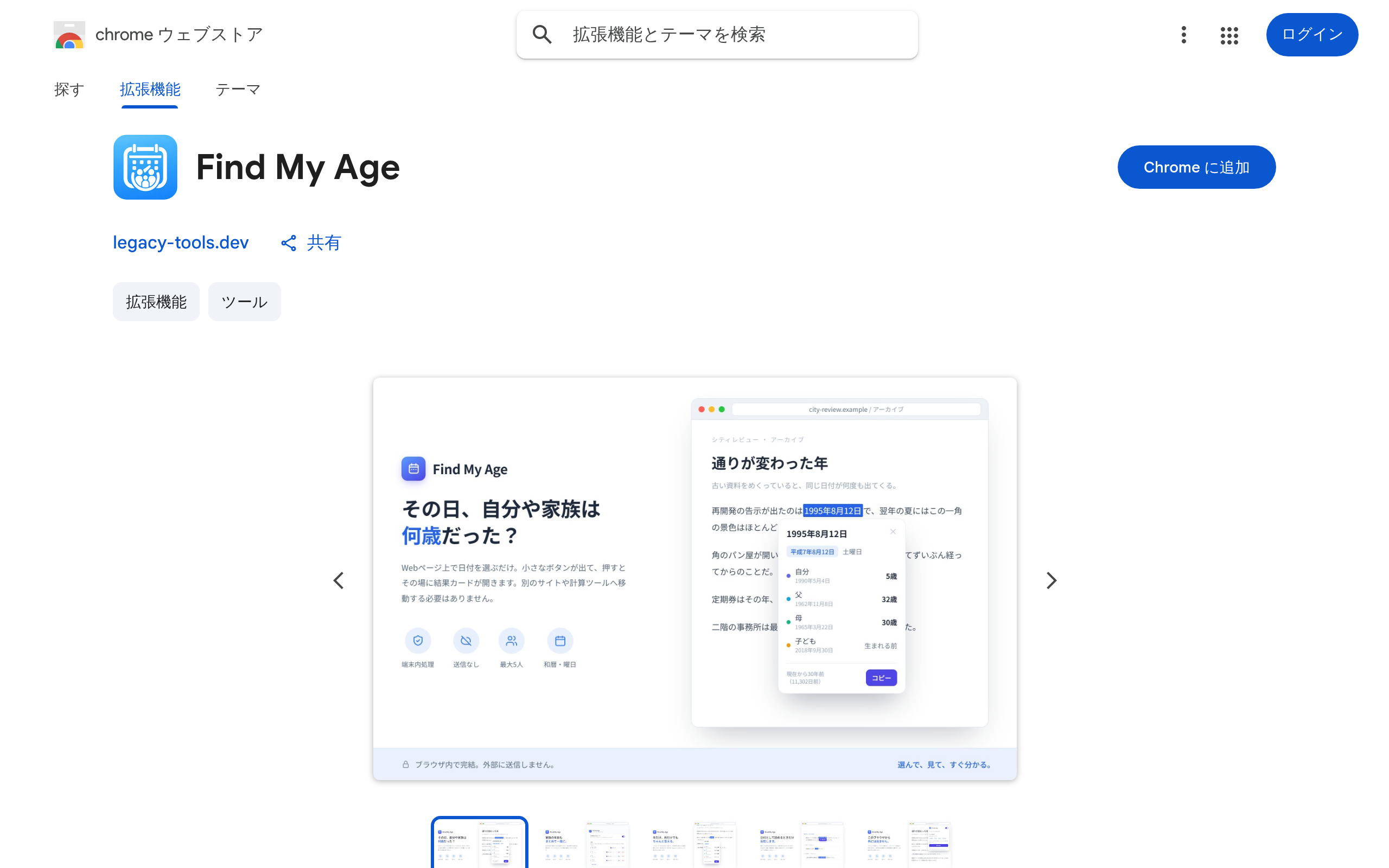
Install the extension, pin it to the toolbar and open its settings.
1Install
Just press “Add to Chrome” on the Chrome Web Store.
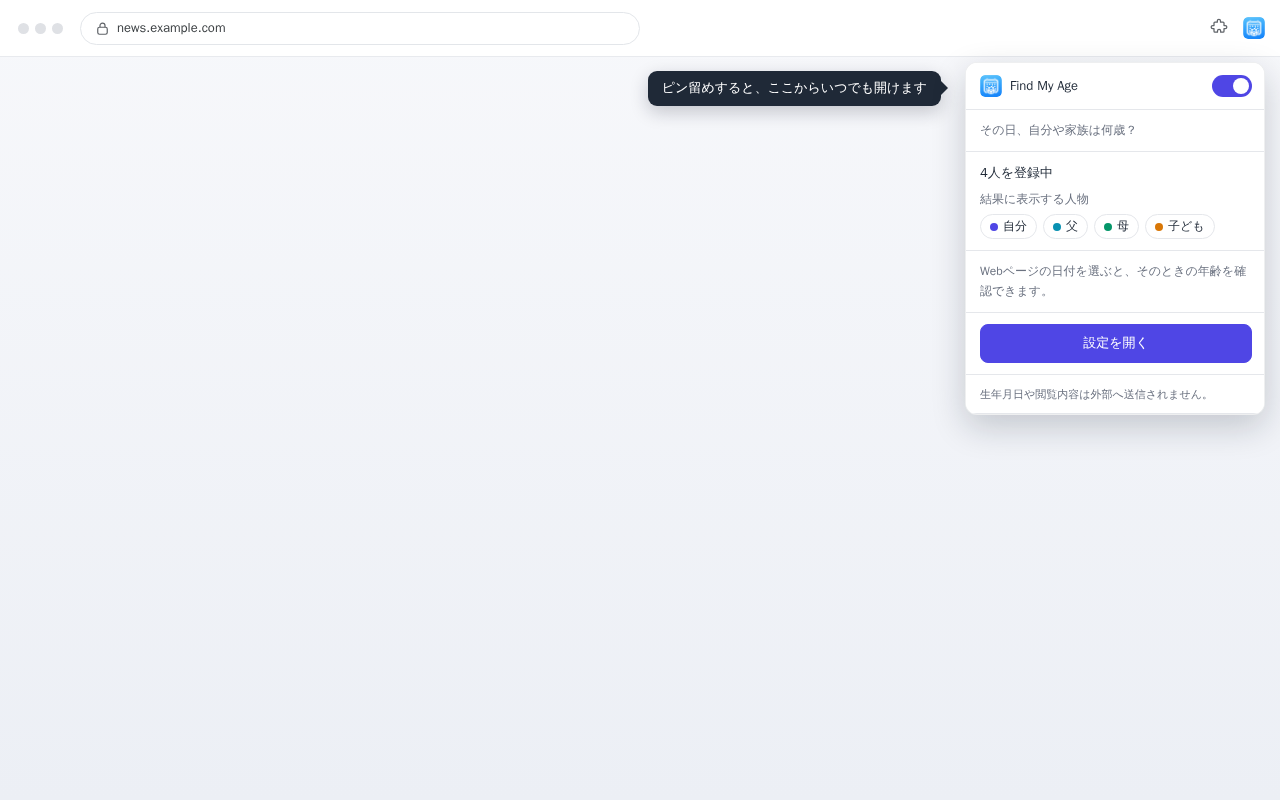
2Pin to the toolbar
Open the extensions icon (the puzzle piece) at the top-right of Chrome and pin Find My Age so it’s always one click away.
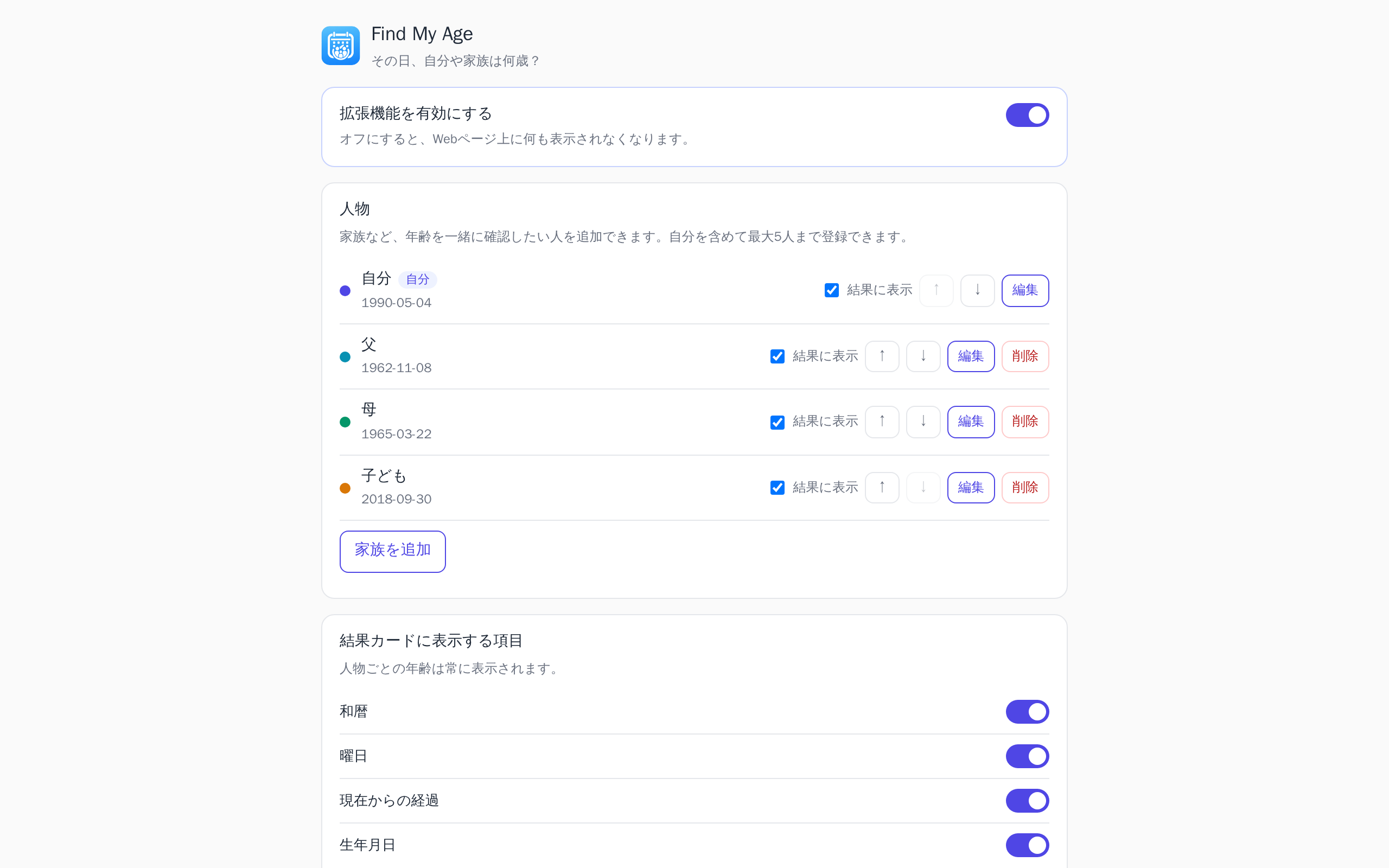
3Register people
On the settings page, start by entering your own display name and date of birth. You can add family members later, up to five in total.
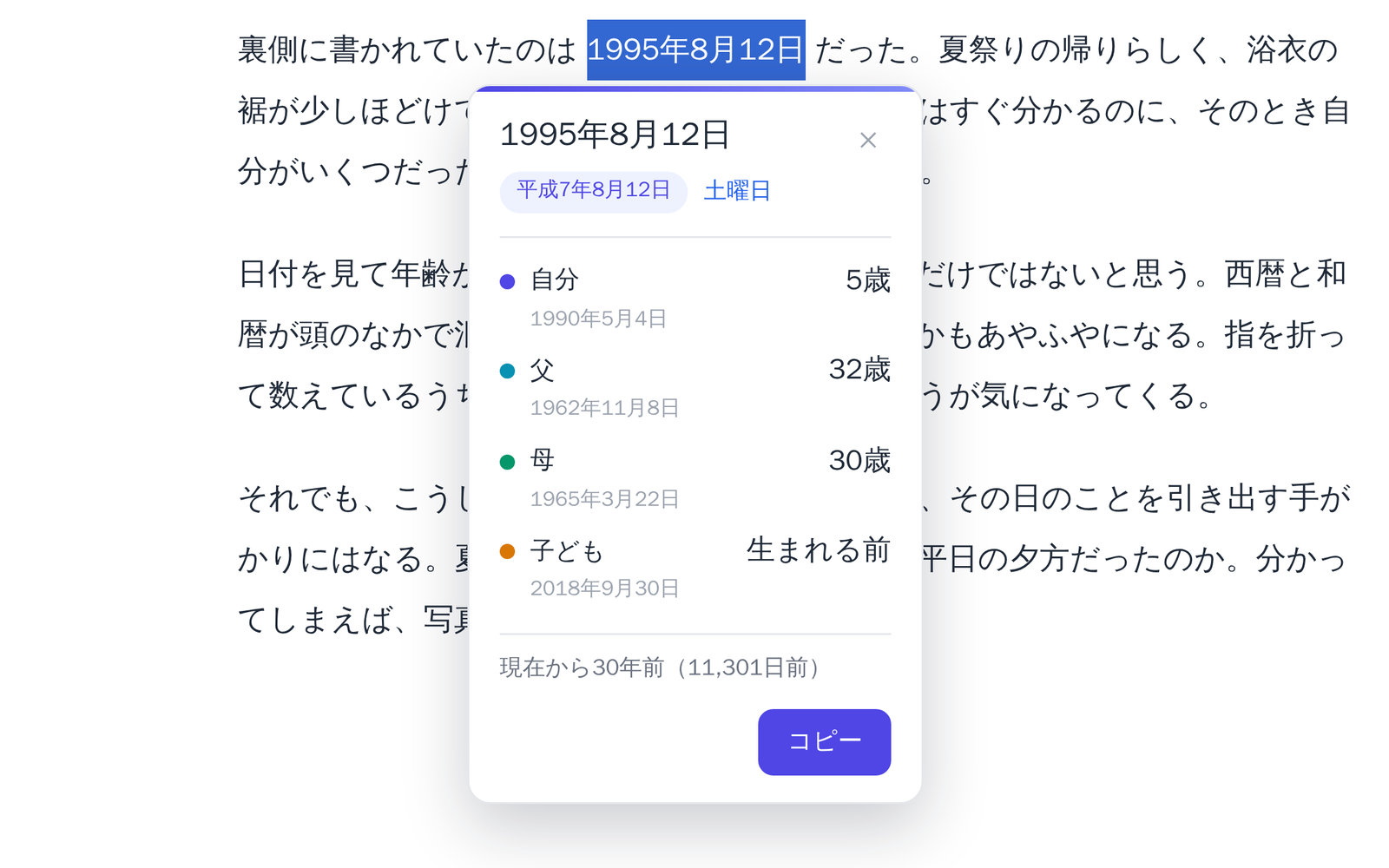
4Select a date and check
Select a date on any web page and press the "See age" button that appears — a card lines up everyone’s age on that day.
Open it any time from the extensions icon (the puzzle piece) at the top-right of Chrome.
PRIVACY
Our privacy promise
Birth dates are stored in your browser. The extension does not send them to an external server.
The birth dates you register stay in this browser, and are never synced.
Selected text is parsed as a date. Parsed dates and results are held temporarily in memory for display and copying.
Where data lives
The extension stores each person's display name, birth date, colour, position and visibility, display settings and the on/off switch. It also stores profile IDs and the self role, calendar and language settings, welcome state and the data schema version. Old data that could not be migrated may remain after an update. This is kept in chrome.storage.local. That area stays on your device: it is not synced to your other devices, and it is never sent to the developer or to any third party. Birth dates are deliberately kept out of any synced storage area.
What is never stored
Page URLs, body text, headings, selected text, displayed results and copied text are not recorded in extension storage. Selected text is parsed as a date; the parsed date and results are held temporarily in memory for display and copying. After copying, the destination or OS clipboard history and sync may handle that content.
External traffic
The current distributed code has no processing that sends data externally or loads remote code. However, it has access to all sites; the permission configuration itself does not guarantee that communication is impossible.
Permissions needed
Access to all sites is what lets the extension respond to a date selection on any page. It reads only the range of text you selected; it does not collect, record, or transmit page content. Results appear on the page you are reading. Their contents are not directly exposed through ordinary page DOM queries, but this is not a confidentiality guarantee against the page. The page can observe the card's presence, dimensions and interactions, or interfere with its display. Screen sharing, screenshots and access by other software are also outside this protection.
Frequently asked questions
MORE TOOLS
Other tools
Explore other tools you can use alongside this one.
How old were we on that date?
Free and fully on-device. Add it to Chrome and start using it today.
View on Chrome Web StoreLEGAL
Before you start
Read the privacy policy and terms of use below.