
 Safe Privacy Gate · MANUAL
Notice before you send.
Just before you submit a form or send an AI chat message, Safe Privacy Gate can show a confirmation for enabled types such as Japanese phone or bank account numbers. Email detection is off initially and can be enabled in settings. It does not rewrite the message; you decide whether to send.
Getting started
From installation to your first confirmation.
Add to Chrome
Open the Safe Privacy Gate page in the Chrome Web Store and select “Add to Chrome.” No account is needed.
- It is free, and you can remove it if it does not fit.
- It asks for permission to work across sites.
Watch the demo
Settings: what to choose and what changes
Choose what to check before sending and which sites to exclude. These settings do not rewrite the message.
Open the settings
Open Safe Privacy Gate from Chrome’s extensions menu, then choose “Open advanced settings”.
Save and apply
Switches and region changes save automatically. Confirm new words or sites with Add, and word edits with Save. Settings stay in this browser.
What to check
- Enable protection
- How to set it
Keep it on to use the checks; turn it off to stop them globally.
- What happens
Off disables text and file-name checks. Turning it back on does not remove trusted-site exclusions.
- Check file names
- How to set it
Turn this on to check names when you select files.
- What happens
A matching name triggers a warning and clears the selection. File contents are not read. Turning this off leaves text checks unchanged. It cannot guarantee stopping uploads started by the site.
- Country / region
- How to set it
Choose a region under Preset detection. Auto uses Chrome’s display language.
- What happens
This filters the choices shown; it does not change saved switches. Types enabled in other regions remain enabled. Review the list of enabled types across all regions.
- Preset detection
- How to set it
Turn on each type you want to check, such as email, phone or card numbers.
- What happens
Enabled built-in patterns become detection targets. You cannot edit these patterns. Email detection is off on a fresh installation with Japanese Chrome UI.
Custom words and exclusions
- Custom detection words
- How to set it
Enter a fictional word such as PROJECT-EXAMPLE and click Add. Use Edit and Save to change an existing word.
- What happens
Matching text becomes a check target. The dialog shows the rule number, not the word itself. Switching a rule off keeps it saved; deleting it removes it. Deleting a rule renumbers the list.
- Advanced: regular expressions
- How to set it
Expand the section, enter a pattern such as EMP-[0-9]{4}, and click Add.
- What happens
This example matches text such as EMP-1234, ignoring letter case. Invalid or potentially expensive patterns cannot be added.
- Trusted sites
- How to set it
Enter a host such as mail.example.com and add it. Delete its entry to check it again.
- What happens
Checks are skipped on the registered host and its subdomains, not just one URL path. Deleting the entry removes that exclusion.
Long text and verification
- Advanced scan limit / Maximum scan length
- How to set it
Normally keep the default 200000. If changing it, enter a number and leave the field to commit.
- What happens
Text longer than the limit is skipped entirely, rather than checking its beginning. A lower limit leaves more long text unchecked.
- Check the result
- How to set it
On a supported, untrusted page, enter a fictional word you registered and try the send action.
- What happens
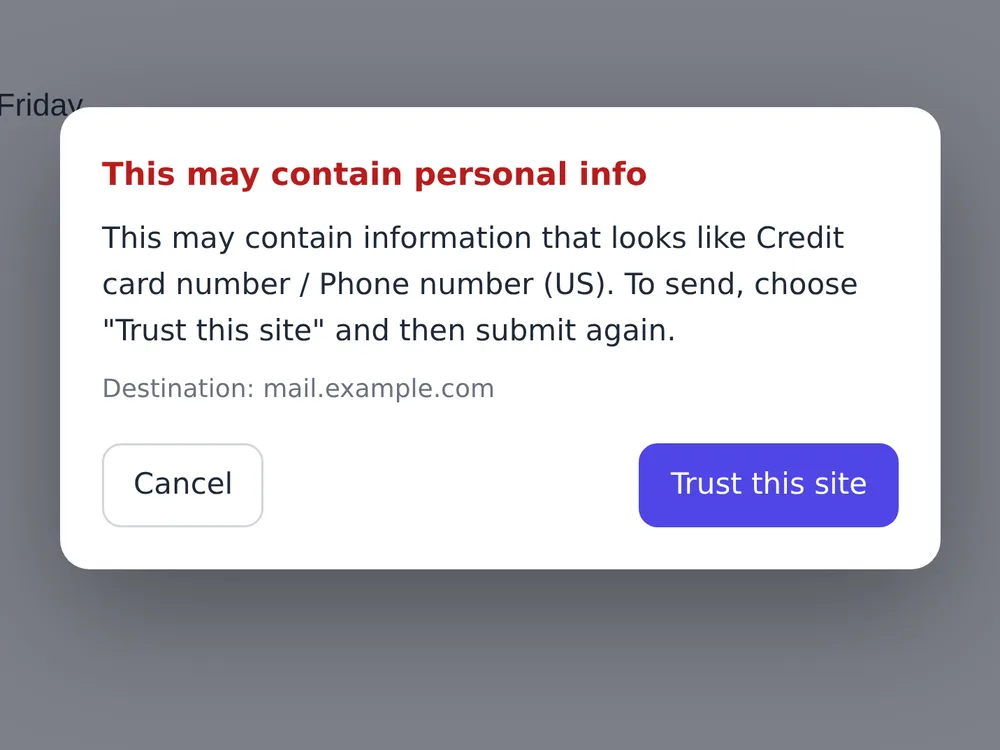
Review the detected type or rule number and choose Cancel. If no dialog appears, check the master switch, enabled types, trusted sites and any temporary pause in the popup.
See the confirmation just before sending.
This practice demo runs only on this page. Your text is not sent or saved. It does not rewrite messages; it checks when you press Send. Use the fictional file selector to try a file name.
Information to detect
Switches show first-install defaults when Chrome’s UI language is Japanese.
Your own words
Add a word to check. The dialog shows its rule number, not the word.
Actions checked
In this demo, press Send to check text, or select the fictional file in the file example. Typing does not change the message.
Notice what a message may contain before sending.
A long message can contain details you did not mean to share. These examples show what the confirmation can point out and which rules you might add. Review the message, or trust the site and send again yourself.
Send a contact form
You may carefully fill out the name and contact fields but paste an old email into the message. A confirmation at Send gives you a chance to review it.
Following up on my earlier message. > Contact: Yamada (yamada.home@example.com / 090-1111-2222) > Membership number A-2026-00123 Please explain the return process.
Matching custom rule numbers: 1
The message is not rewritten. Trusting this site keeps its host and subdomains on the trusted list until removed.
A-\d{4}-\d{5} → custom rule 1Pattern
The final check is yours.
Detection has limits
Patterns and your own rules can miss information written in other ways. Unrelated numbers may also trigger a confirmation.
The message is not rewritten
It does not edit or format pasted text. Review the confirmation and decide what to change.
It does not resend automatically
“Trust this site” adds the current host and its subdomains to the trusted list until removed. It never resends automatically; you must press Send again.
It does not prohibit sending
It does not enforce organization-wide monitoring or blocking. It does not replace DLP or access controls.