
 Safe Night Check · MANUAL
Pause before sending at night.
When you try to send a Gmail message during the hours and days you set, a confirmation appears. Choose to return to your draft, see how to schedule with Gmail, or send anyway.
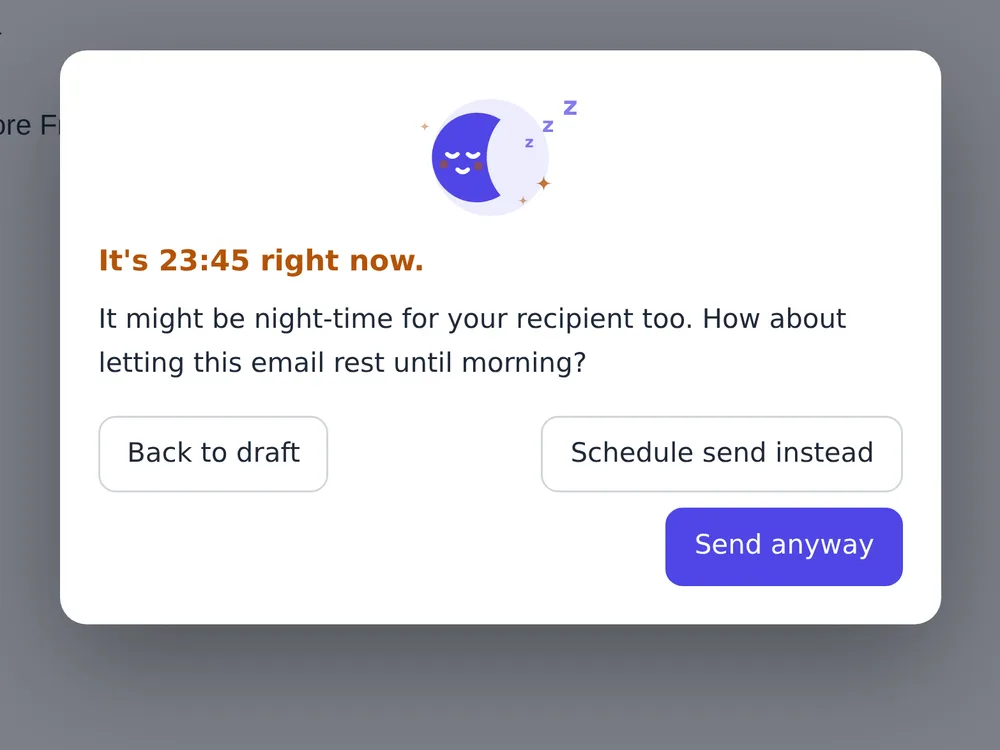
Choose before sending at night
What happens when you press Send during your selected hours.
Add to Chrome and open Gmail
Add the extension from the Chrome Web Store, then open Gmail on your computer at mail.google.com.
Watch the demo
Settings: what to choose and what changes
Choose when Gmail should show a pre-send confirmation, using the device’s local clock.
Open the settings
Open Safe Night Check from Chrome’s extensions menu and choose Open settings.
Save and apply
Changes save automatically. If saving fails, retry the change and review the current settings shown. Hours, days and the master switch use Chrome sync. Pauses apply only to this Chrome profile.
Hours and days
- Night-time send confirmation
- How to set it
Turn it on to use scheduled confirmations, or off to stop them globally.
- What happens
Even when enabled, confirmations are skipped outside the selected hours and days, or during a pause. The tool does not decide from message content.
- Night hours
- How to set it
The sleep preset is 22:00–06:00 the next day; late night is 00:00–05:00. Custom lets you choose start and end in whole hours.
- What happens
The start is included and the end is excluded. For 22:00–06:00, 05:59 is included and 06:00 is not. Identical start and end times mean no confirmations.
- Days to check
- How to set it
Choose every day, weekdays, or select individual days.
- What happens
An overnight window belongs to the day it starts. With Friday and 22:00–06:00 selected, Saturday at 01:00 belongs to Friday night. Selecting no days disables scheduled confirmations.
Temporary pauses
- Pause for one hour
- How to set it
Review the end time and press the one-hour pause button.
- What happens
Confirmations pause across Gmail in this Chrome profile for one hour. Normal scheduling resumes afterward. A new one-hour pause cannot start while globally off or already paused.
- Pause for tonight
- How to set it
During an eligible night window, review the end time and choose not to show confirmations again tonight.
- What happens
The pause lasts until the end of the current eligible window. The next night follows normal settings. This pause cannot start outside an eligible window.
- Resume / Change schedule during a pause
- How to set it
Use Resume to end a pause early. Read the confirmation before changing hours or days while paused.
- What happens
Resuming reapplies the normal schedule. Confirming a schedule change also clears this Chrome profile’s pause. Cancelling leaves both the schedule and pause unchanged.
Read the status
- Verify settings and behavior
- How to set it
Review the current status and next eligible time. For example, select every day from 22:00 to 06:00.
- What happens
Status is calculated from settings and the device clock; it does not verify Gmail permissions or send detection. It also cannot confirm sync completion on other devices. At an eligible time, check with a draft and choose Return to draft in the confirmation.
A moment before a late-night send.
When asked, decide whether this message should go now.
Write late at night
Return to draft if you want to read your message again in the morning.

The final check is yours.
Gmail only
It works with send actions on mail.google.com, not other mail services or apps.
The message is not read
Time and settings determine whether to ask. It does not check the content or whether a recipient is appropriate.
Check scheduling in Gmail
The extension does not schedule automatically. Confirm the date and status in Gmail.
Pauses are per profile
Hours, days and ON/OFF can use Chrome Sync; pauses stay in this Chrome profile.