
 Safe Attachment Check · MANUAL
See what an attachment still carries.
When you attach a photo or document, this tool shows metadata it finds, such as location or author details. It does not stop the website's upload, so review the file before attaching it too.
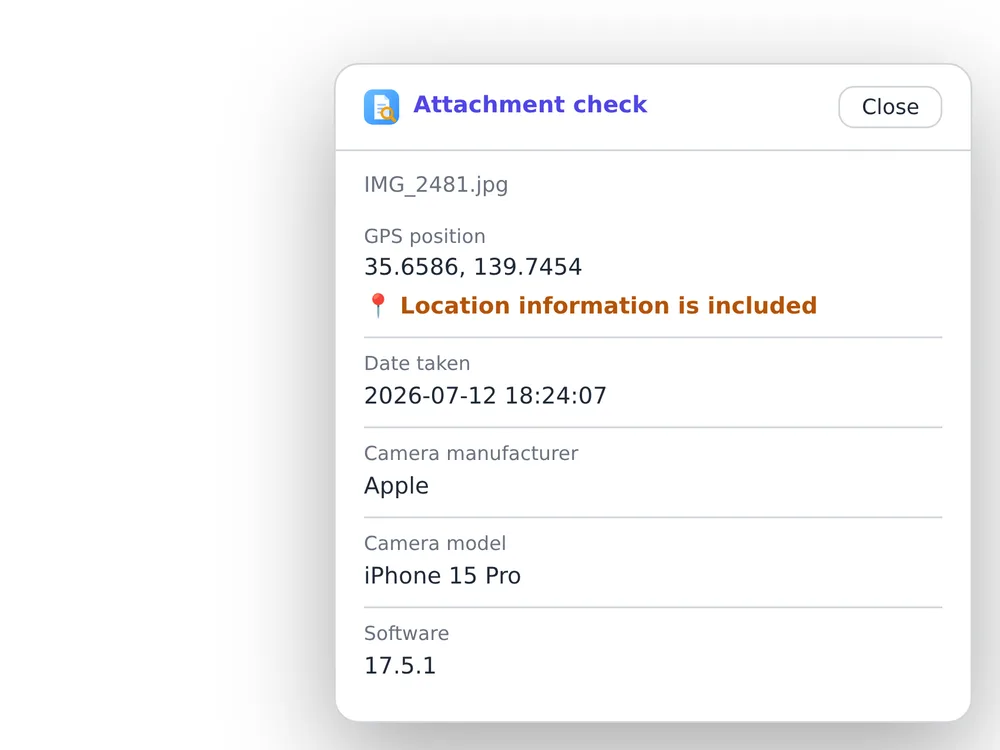
Check a photo you attach
From adding the extension to reading a card.
Add the extension to Chrome
Open Safe Attachment Check in the Chrome Web Store and add it.
- By default, a card appears when the extension finds metadata.
Watch the demo
Settings: what to choose and what changes
Choose file types to check and how results appear. These settings do not stop website uploads or remove information from files.
Open the settings
Open Safe Attachment Check from Chrome’s extensions menu and choose Open settings.
Save and apply
Changes save automatically after each action. If saving fails, try again and reopen settings to verify the value. Settings stay in this browser.
Enable and display results
- Enable Safe Attachment Check
- How to set it
Turn it on to check attachments, or off to stop globally.
- What happens
Off stops file analysis and result UI on pages. Excluded sites and disabled file types remain excluded when you turn it back on.
- When to display results
- How to set it
Choose only when hidden information is found, or every time even when nothing is found.
- What happens
The first mode omits cards for files with no findings while showing findings and other results requiring attention. The second also shows cards with no findings. Distinguish an incomplete check from a check that found nothing.
- Brief message when nothing is found
- How to set it
Enable it if you want a brief notice when no result card is needed.
- What happens
A short message appears when files were analyzed and no cards are visible. It is not used when the every-time mode displays a card. Turning the message off does not stop analysis.
Target files and sites
- File types to check
- How to set it
Toggle images (JPEG, PNG, WebP), PDF, Word (.docx), and Excel (.xlsx) individually. All are on initially.
- What happens
Disabled types are not analyzed. Findings depend on the format: for example, photo locations, document authors, Word revisions or hidden Excel items.
- Sites without automatic checks
- How to set it
Enter an exact host, such as mail.example.com, and click Add. Use Resume automatic checks to remove it.
- What happens
Only that exact host is excluded; subdomains need separate entries. This differs from Gate’s trusted-site scope. Removing an entry resumes checks according to the master and file-type settings.
- Check the result
- How to set it
Choose to display results every time and select a supported test file without personal information on a supported page.
- What happens
Look for its result card. If absent, review the master switch, file type, excluded site and attachment method. Even a test attachment may be uploaded immediately by the website.
What to review when you attach a file.
Read the findings for the kind of file you are sharing.
Post a photo
Check whether a travel photo still has location data before posting it.

The final check is yours.
The website can still upload
A website may start uploading as soon as you attach a file, before the card appears.
Files are not changed
The extension displays findings only. Remove or edit information in the original app.
Checks have limits
Only supported formats and attachment methods are checked. No card does not prove a file has no metadata. This is not a malware scanner.
Results appear on the page
The extension does not send files or results to its own server, but the website may be able to read results displayed on its page.