
 Copy & Prep · MANUAL
Collect and prepare selected text.
Select useful text on a web page and add it from the right-click menu. Reorder passages, tidy line breaks and copy them together.
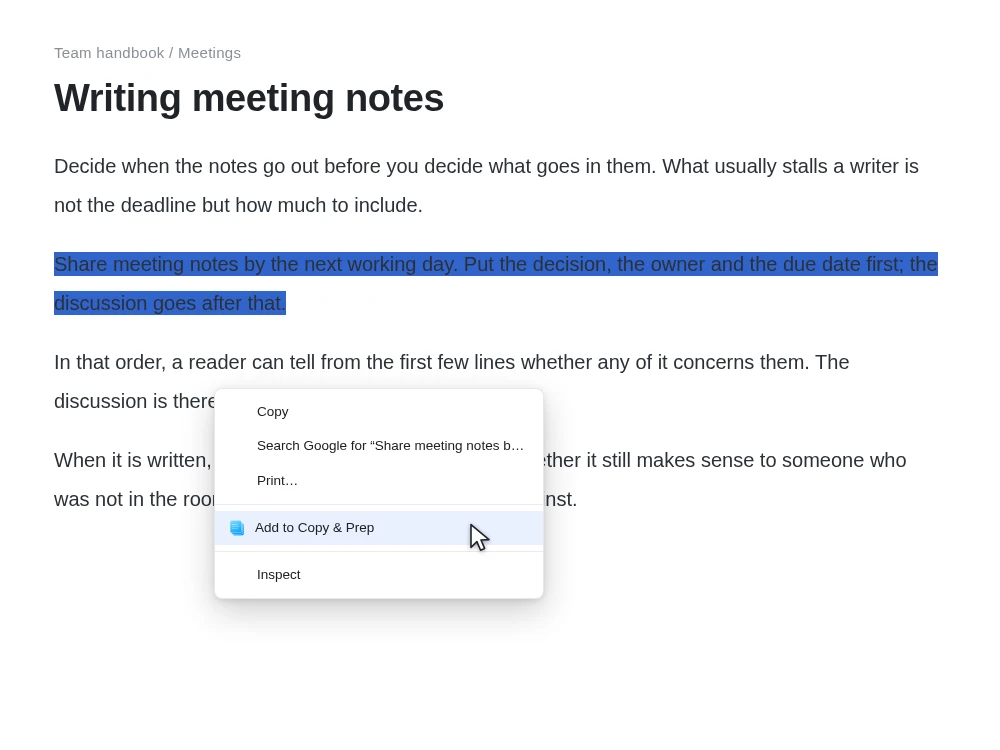
Collect and copy passages
The basic flow from selection to copy.
Add to Chrome
Add Copy & Prep from the Chrome Web Store.
Watch the demo
Settings: what to choose and what changes
Use settings to edit collected passages and choose the format used when copying them together.
Open the settings
Open Copy & Prep from Chrome’s extensions menu and choose Open settings. Collected text appears above Output settings and Sources.
Save and apply
Output settings save when changed. Text edits require Save; cleanup requires Apply after reviewing the preview. Collected passages and settings stay in this browser.
Collect and organize
- Collect text
- How to set it
Enable collection, or turn it off to stop adding passages.
- What happens
Off removes the context-menu command. Already collected text remains available to review and copy.
- Selection and order
- How to set it
Check the items you want and move them up or down.
- What happens
Selected-item output includes only checked items in displayed order; all-item output includes every item. Editing, changing or deleting an item clears its selection, so review the selection before copying.
- Edit / Tidy text
- How to set it
Edit the body and save it. For cleanup, review before and after, then apply the transformed text.
- What happens
This updates the stored passage. Cleanup adjusts whitespace and line breaks; it does not summarize or rewrite the content. Closing the preview alone does not apply it.
- Delete / Clear all
- How to set it
Delete unwanted items, or confirm Clear all to remove the whole collection.
- What happens
Stored passages are removed. Turning collection off does not do this. Copy anything you need before clearing it.
Output and sources
- Output format
- How to set it
Choose Plain text or Markdown.
- What happens
Plain text separates passages with blank lines. Markdown adds --- between passages. It does not turn the body into headings or lists.
- Include page title / URL / Date added
- How to set it
Enable each source detail you want. All are off initially.
- What happens
Enabled source lines follow each passage. Missing values are omitted. Turning source output off does not delete stored source metadata.
- Source-label language
- How to set it
Enable at least one source detail, then choose Japanese or English.
- What happens
Only source labels change. It does not translate the passage or change the interface language. The selector is disabled when all source details are off.
- Exclude sources during review
- How to set it
Open Review all or Review selected, select items under source URL review/exclusion, then refresh the output preview.
- What happens
Those items’ title, URL and date are omitted from this output only. Stored metadata is unchanged; exclusions reset when the review closes.
- Check the result
- How to set it
With at least two items, choose Markdown and include URLs, then review all items.
- What happens
Check the --- separators and source URLs in the preview before copying. Direct Copy all / Copy selected skips the review, so use the review buttons to inspect changed settings.
Collect first, review before use.
Pick only the text you need and check its order and sources.
Read several articles
Collect only the paragraphs you want to revisit using the right-click menu.

The final check is yours.
Only explicitly added text
It handles selections you add from the right-click menu, not the whole page.
Review before tidying
Tidy up adjusts line breaks and spaces. It does not summarize, rephrase or proofread.
Items remain after copying
Selected and edited text, page title, URL and date added are stored locally until you delete them.
Sources are off by default
Turn on page title, URL or date added for output when needed. Academic citation formats are not generated.