USE CASE
Sharing photos of children or pets? Check the location data too
A cat asleep on the sofa, a dog playing in the garden, a child’s birthday at home. When you share a favourite photo with family or friends, check the location data stored in the file as well as what is visible in the picture.
Safe Attachment Check shows information in photos you attach in Chrome on a computer. It does not remove location data or stop uploads. If you do not want that data to reach the service, check and remove it with your photo app or operating system before attaching the file.
A photo can carry a location even when your home is out of view
Alongside the picture, a photo may store when and where it was taken. GPS data gives coordinates, rather than a written address. In a photo taken at home, those coordinates can be a clue to where you live.
Not every photo contains location data. It depends on camera settings and how the photo has been edited or shared. Apple explains that people receiving a photo with location metadata may be able to find out where it was taken.
Apple Support: Manage location metadata in Photos (external site)
Check before attaching a photo if you want to keep its location private
A service may start uploading as soon as you select a photo. It does not necessarily wait for the extension’s information card to appear.
- Use your photo app or operating system to check the location and remove data you do not want to share
- Open the copy you intend to share again, and check its location data and what is visible in the picture
This Chrome extension does not run in social media apps on a phone. Check your photo app and the location settings used when sharing. Apple’s guide covers checking, removing and excluding location data when sharing on iPhone and iPad.
Apple Support: Manage location metadata in Photos (external site)
Read the information left in an attached photo
Safe Attachment Check processes the file inside your browser and does not send your photos anywhere. This is separate from any upload performed by the service you are using.
- 1
With the extension installed in Chrome on a computer, attach the copy you intend to share. Use the file picker or drag and drop. Supported image formats are JPEG, PNG and WebP.
- 2
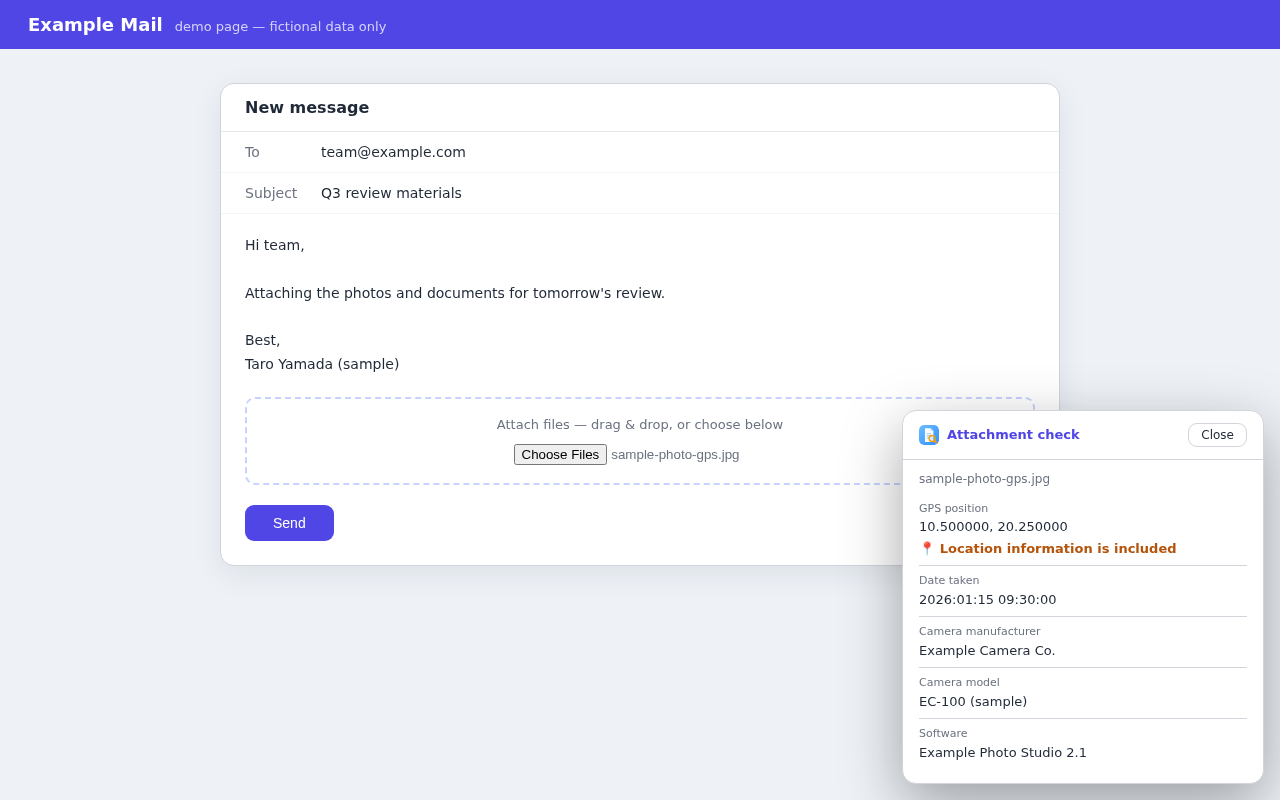
If location data or other information is found, a card appears in the corner of the page. No card does not mean the photo contains no personal information.
- 3
Read the listed fields. GPS data appears as coordinates; the extension does not turn it into an address or a map.
- 4
If you find information you do not want to share, remove it in your photo app or operating system and prepare another copy. Attaching a replacement may not undo information already sent to the service.
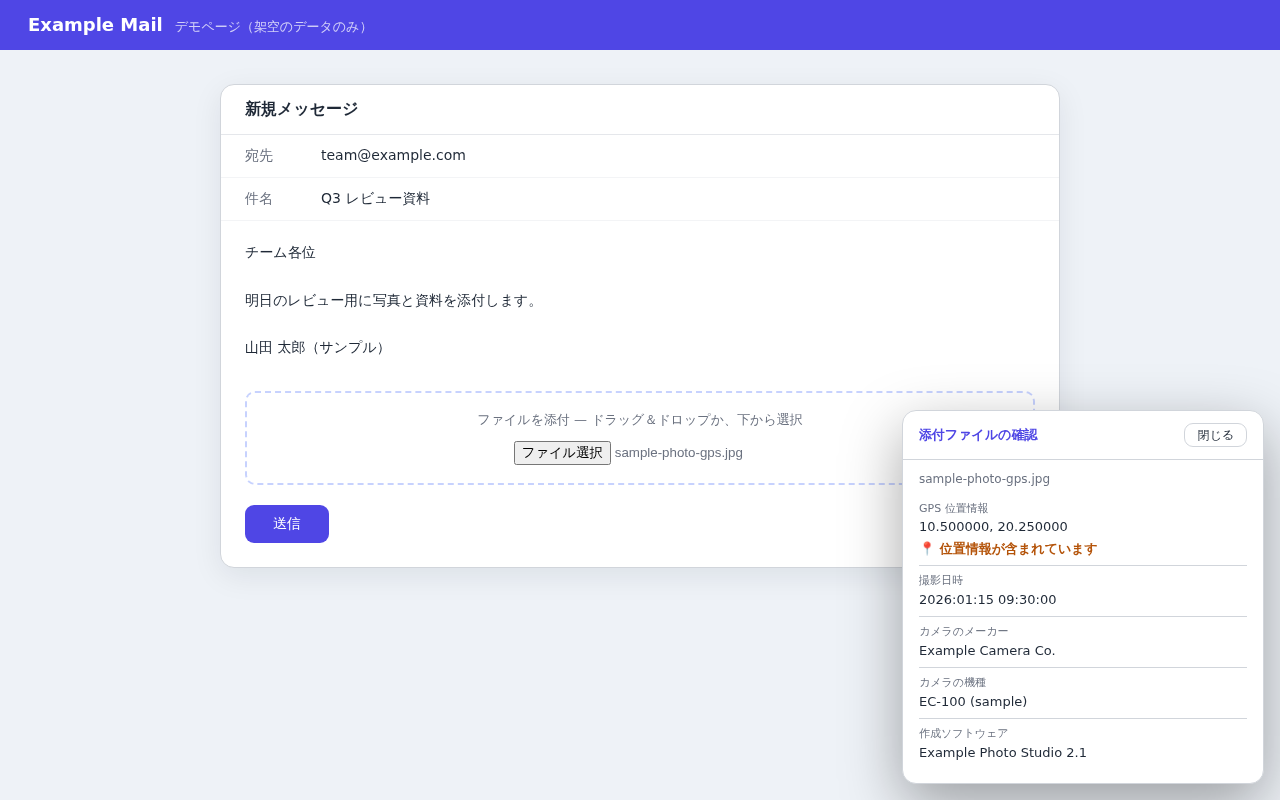
For a photo, the card lists these fields.
The image formats it handles are JPEG, PNG and WebP. PDF, Word and Excel files list a different set of fields.
Also check the background, location tag and audience
What is in the background
Look behind the child or pet for a house nameplate, an address on mail or a school name.
Location attached to the post
Check for an unintended place tag or check-in. This is separate from location data stored in the photo.
Who can see the photo
If the photo is for family only, check that the post is not set to public.
Safe Attachment Check cannot check these things. Review the picture and the posting screen yourself.
Can everyone find the location of a photo posted on social media?
Not necessarily. How photo information is handled depends on the service and the way you share it.
For example, X says it temporarily retains photo metadata (Exif) for processing but does not make it available to people viewing the photo. What reaches a service is not necessarily what other people can see.
X Help: Posting photos or GIFs and how Exif data is handled (external site)
Safe Attachment Check shows information in your local file. It cannot tell whether a service will remove or publish that information.
References checked on September 29, 2026. Service behaviour may change.
Share the photo with the people you have in mind
A child growing up, or a quiet moment with a pet: there is pleasure in sharing these photos. Use the check to notice information you did not mean to send along with them.
Safe Attachment Check A Chrome extension that shows information left in attached photos and documents, inside your browser Features & usage →