
 Site Operator Check · MANUAL
Read what a page says about its operator.
Before entering an address or card number on an unfamiliar site, run the check from the toolbar icon. The panel shows operator statements, evidence and items it could not confirm.
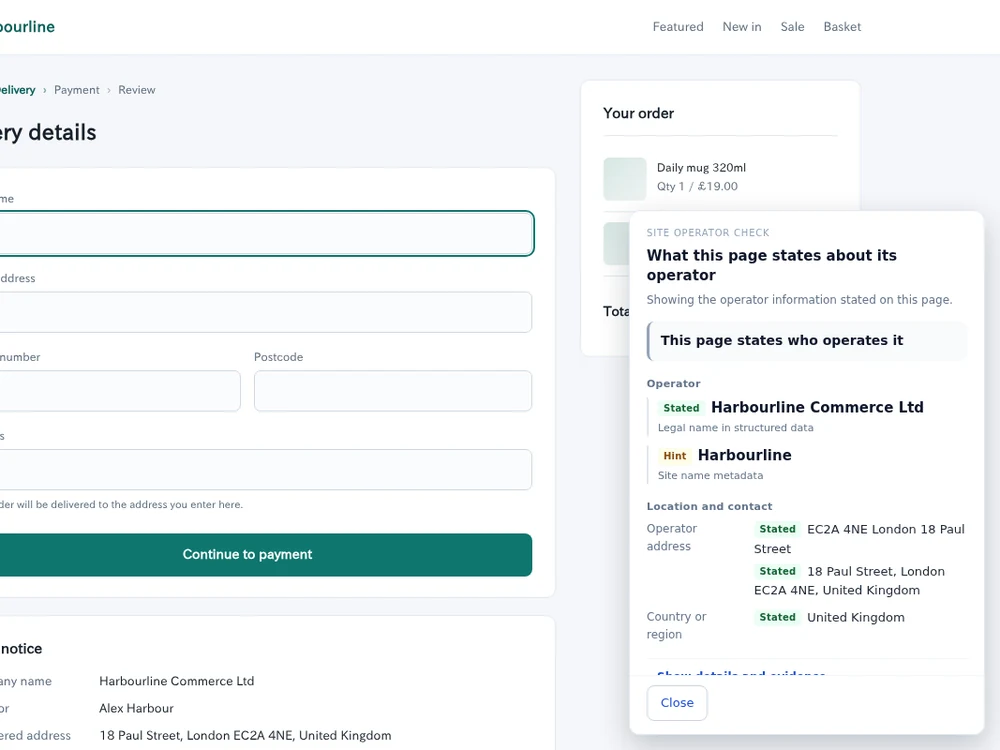
Check this page's operator
Only the page you choose is checked.
Add to Chrome
Add Site Operator Check from the Chrome Web Store. Pin it to the toolbar if useful.
Watch the demo
Available controls and what happens
This product has no dedicated settings page or detection-category switches. Use the toolbar popup to check a page manually.
Open the popup
Open the page you want to check, then select Site Operator Check from Chrome’s extensions menu. Optionally pin it to open it from the toolbar next time.
About saved settings
The popup has no saved preferences. Pinning is a Chrome display preference. To stop the extension entirely, turn it off in Chrome’s extension manager.
Popup controls
- Check this page’s operator
- How to set it
Show the page you want and press this button.
- What happens
The current page is read and a results panel appears on that page. Merely opening the popup does not show the results panel.
- Cancel / Check again
- How to set it
Cancel while a check is running, or check again after a failed or unanswered request.
- What happens
Cancelled checks do not display their results. Retrying starts a new check. An old panel left after a failure is not the result of that failed request.
- Reload page…
- How to set it
Use this if a page opened before an extension update does not respond. Read the confirmation and preserve any unfinished input before confirming reload.
- What happens
The page reloads, but the check does not rerun automatically. Press the check button again. Reloading cannot enable checks on Chrome internal pages, the Web Store, PDFs or local files.
Understand scope and results
- Information from another page
- How to set it
Visit the same site’s company or legal-information page yourself, then reopen the page you want to check.
- What happens
Eligible pages are automatically read after loading and temporarily stored in the browser. Information can supplement another page on the same origin, labelled as coming from another page during manual checking. Unvisited links are not opened automatically.
- Read the result
- How to set it
Review the operator name, evidence and details that could not be confirmed.
- What happens
These are statements found on pages, not verification that an operator exists or a site is safe. Missing information is not a safe-or-dangerous verdict.
Read what is stated before entering details.
Use the evidence and missing items to inform your own decision.
An unfamiliar shop
Before entering an address or card number, check for an operator and contact details.
The final check is yours.
No safety or identity verdict
It does not prove a company exists or that a statement on the page is true.
Only when you run it
It does not watch input and appear automatically, or stop a submission.
Other pages are not fetched
Only pages you visited earlier on the same site in this session may provide labelled details.
Missing is not a verdict
Not confirmed means the detail was not found here. It does not mean safe or dangerous.