
 Find My Age · MANUAL
See how old you were on that date.
Register your birth date and those of family members. Select a date on a web page and press See age to view each person's age then.
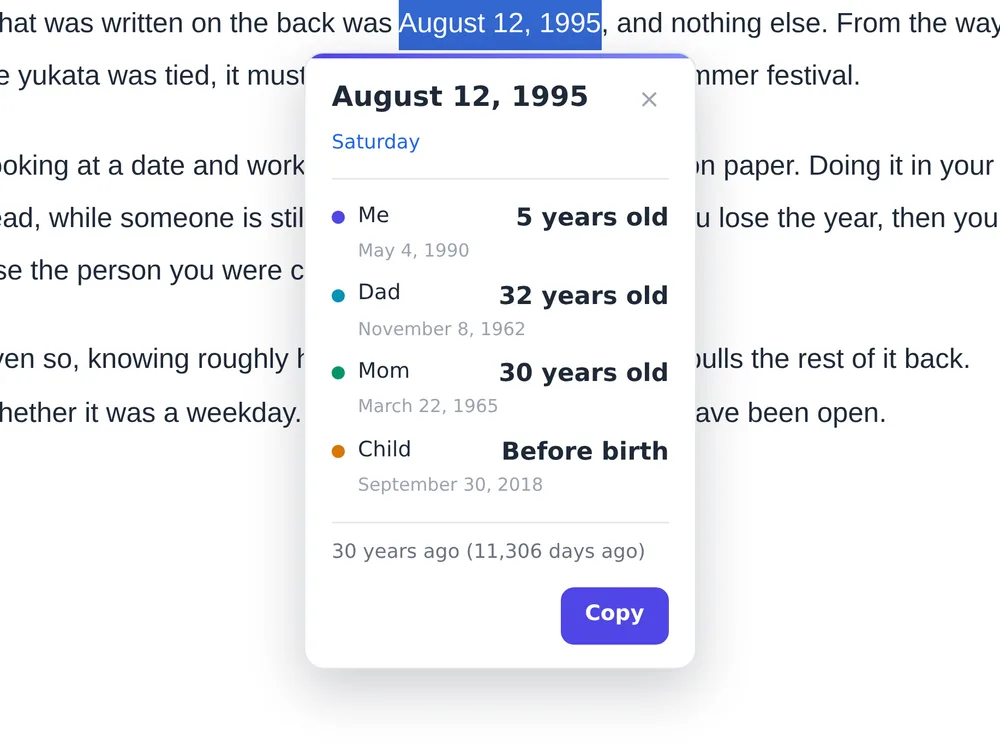
See an age for a date on a page
From setup to the first age card.
Add to Chrome
Add Find My Age from the Chrome Web Store.
Watch the demo
Settings: what to choose and what changes
Choose the people whose ages you want to see and the details shown on the result card. Changing a birth date changes the calculated age.
Open the settings
Open Find My Age from Chrome’s extensions menu and choose Open settings. First-time setup starts with your own birth date.
Save and apply
Confirm initial setup with its registration button, and person additions or edits with Save. Visibility switches and ordering save when changed. People and settings stay in this browser without device sync.
Enable and register people
- Enable the extension
- How to set it
Keep it on to use page results, or turn it off to stop them.
- What happens
Off stops age UI on web pages while keeping registered people.
- Display name / Birth date
- How to set it
Enter a name and full birth date. To add another person, choose Add family member, fill in the fields and save.
- What happens
The card shows the name and age calculated from that birth date. Up to five people, including yourself, are allowed. Duplicate names, invalid dates and future birth dates are rejected.
- Edit / Display colour
- How to set it
Edit a person, change their name, birth date or colour, then save.
- What happens
Name and colour identify the person in results. Changing the birth date changes age calculations. Cancel leaves the edit unapplied.
- Show in results
- How to set it
Uncheck a person to hide them temporarily.
- What happens
The person is omitted from the card but remains registered. At least one person must stay visible.
- Up / Down and Delete
- How to set it
Use arrows to reorder people. Confirm Delete to remove an additional person.
- What happens
Result order follows the list. Deletion removes that person. The initial self profile can be edited but cannot be deleted.
Result card details
- Japanese era
- How to set it
Toggle this where the Japanese-era control is available.
- What happens
This changes the era line for supported dates, not age calculation. The control is normally absent in the English interface.
- Weekday
- How to set it
Enable it to show the day of the week.
- What happens
Weekday is shown for a full date. Selecting only a year or month cannot produce a weekday.
- Time relative to today
- How to set it
Enable it to show how far the selected date is from today.
- What happens
The card gains relative-time information. Ages remain visible regardless of this switch.
- Birth date
- How to set it
Turn it off if you do not want birth dates on the card.
- What happens
This hides birth-date lines without deleting stored dates or stopping age calculation. Birth-date fields are excluded from the card’s Copy output.
- Check the result
- How to set it
Save settings, select a full date again on a web page and press See age.
- What happens
Check names, order and optional details. With Birth date off, ages should remain visible while birth-date lines disappear.
A little context for a date.
See ages for one selected date and the people you registered.
Read an old article
Select a year in an article to see how old you were then.
The final check is yours.
Only selected dates
It does not annotate every date on a page. Editable fields and some other areas are outside its scope.
A reference age
It does not decide eligibility. Check the applicable rules, including any leap-day treatment.
Birth dates stay on the device
Registered people are stored in this browser and are not synced. Take care on shared devices and during screen sharing.
Results appear on the page
This is not a confidentiality guarantee against the page; it may observe or interfere with the card.