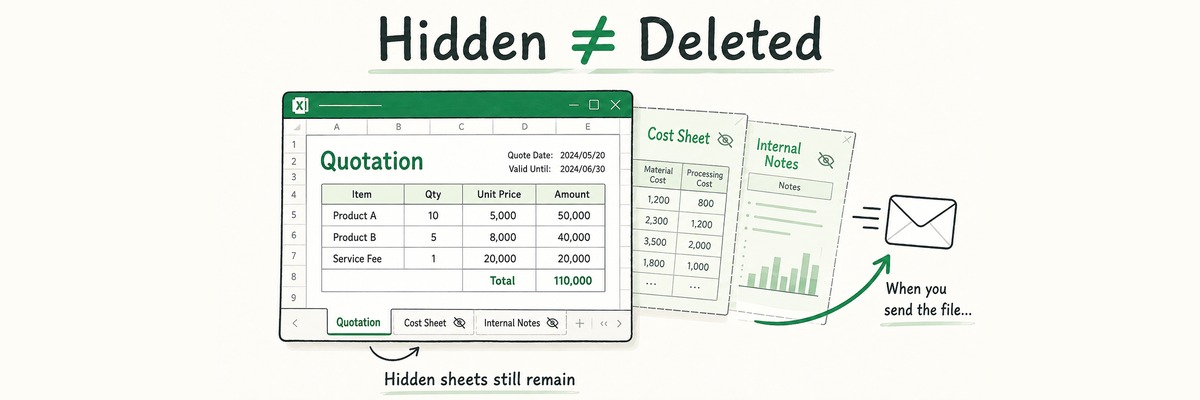
Can the Recipient See Hidden Sheets in Your Excel File?
Hiding a sheet in Excel does not take it out of the file. We built a workbook with a hidden sheet, a very hidden sheet, hidden rows and columns, comments and author details, then compared the contents before and after hiding. Nothing had been removed. Here is what to check before you attach an .xlsx.

Hide a sheet in Excel, save the file, and the person who opens it next can bring it back with a right-click and two clicks. We built the same workbook twice — once with everything visible, once with a sheet, two columns and a row hidden — and compared what was actually inside. Nothing had been removed. The file had grown slightly.
Hidden sheets are an ordinary feature. Intermediate calculations and lookup tables live on them for good reasons. The problem is narrower: not knowing they are still there when the file leaves the building.
What we tested on
- Microsoft Excel 16.0 (build 16.0.20228, Microsoft 365) on Windows
- .xlsx format, Japanese-language interface
- Checked on 16 August 2026
The steps below were performed through Excel's automation interface rather than by clicking the ribbon. We did not verify how the buttons look or behave on screen.
One consequence worth stating up front: our interface was in Japanese, so the English command names in this article are the standard equivalents rather than labels we captured from the application. The behaviour we describe was measured; the wording on your ribbon was not.
We did not test Excel for Mac, Excel for the web, the perpetual-licence versions (2021, 2019 and so on), .xls files, macro-enabled workbooks, or password-protected files.
What we did
We made a quote-like table on one sheet, then added the material that would later be hidden.
- A second sheet holding cost figures and an internal note
- A third sheet holding working notes
- A customer ID column and a cost column (E and F)
- A row carrying an internal reference number (row 7)
- Two kinds of cell comment
- Document properties: author, company, title
- A defined name,
internal_price, pointing at a cost cell
Then we hid things one stage at a time, saving a separate file at each stage, and counted what survived. All values were synthetic test data.
| File | Size | "Internal notes" sheet | "Working" sheet | Hidden rows/cols | Comments | Author name |
|---|---|---|---|---|---|---|
| 1. Table only | 9,267 | absent | absent | none | 0 | present |
| 2. Everything added | 14,084 | visible | visible | none | 2 | present |
| 3. Sheet, rows and columns hidden | 14,145 | hidden | visible | hidden | 2 | present |
| 4. Hidden one level deeper | 14,137 | hidden | gone from the menu | hidden | 2 | present |
| 5. Personal information cleared | 11,238 | still hidden, still there | still there | still there | 0 | empty |
Hiding is not removing
Compare rows 2 and 3. We hid one sheet, two columns and one row. Not a single count went down.
The file did not shrink either. It went from 14,084 to 14,145 bytes — 61 bytes larger, because the instruction "do not display this sheet" is itself something that gets written into the file.
Reopening that third file in a separate copy of Excel showed three sheets, as before. Only the display had changed.
The hidden columns and row behaved the same way. The customer IDs in column E, the costs in column F, and the reference number in row 7 all read back without difficulty. When you hide a column, Excel also writes a width of zero for it. What makes it invisible is the zero width — the contents stay.
We ran the same experiment on Word's tracked changes, with the same result: hiding the markup removed nothing from the file.
There is a second kind of hidden
For file 4 we hid the "Working" sheet one level deeper. Alongside ordinary hiding, Excel has a state — usually called very hidden — that takes the sheet out of reach of the unhide menu.
We measured what that does to the menu. When the only hidden sheet left was the very hidden one, the Unhide Sheet command was no longer available at all. With even one ordinary hidden sheet still present, the command stayed available. That mixture is the awkward case: the menu works, you restore what it offers, and the workbook looks clean.
The sheet had not gone anywhere. Its contents were readable without unhiding it, and setting the state back made it visible again.
The unexpected part was elsewhere. Making a sheet very hidden removed its name from the sheet list stored in the file's properties. An ordinary hidden sheet keeps its name there. So it is less that the sheet hides more deeply, and more that the trace moves somewhere else.
Clearing personal information left the hidden sheets behind
File 5 produced the result we least expected.
Excel can clear document properties and personal information in one operation. Running it emptied the author, last-modified-by, company and title fields, and removed the comments.
Both hidden sheets survived it. So did the hidden rows and columns, and so did the defined name. Clearing personal information and clearing hidden content turned out to be two different jobs.
There is more. Inside the file, the text from every sheet is pooled in one shared table. Strings we had typed on the hidden sheet and on the very hidden sheet were sitting in that pool alongside the visible ones — and in file 5, after the clean-up, the pool had not lost a single entry.
One caveat matters here. What we ran was Excel's automation equivalent of clearing personal information, not the Document Inspector reached through File → Info. The Inspector offers hidden worksheets as a separate item to check, and we did not run it. We cannot tell you what that produces.
One comment, stored twice
Excel has two kinds of comment: the older note and the newer threaded comment. We added one of each.
The surprise was that our single threaded comment was stored in two places in the file — once in the modern form, and once again as a copy for older versions of Excel to read. One comment, two records.
Adding a comment also creates a separate record identifying the person who wrote it, beyond the display name. Clearing personal information emptied that record's contents, but the record itself stayed in the file.
Names are not only in the Author box
Two more things we had not anticipated.
First, we changed the user name in Excel before starting, and the file still recorded the previous name. Excel reported the new name in its own settings; the author and last-modified-by fields carried the old one. When you are signed in to Microsoft 365, the account name appears to take priority. We could not confirm which combination of settings causes this, so we will not claim a mechanism. Word behaved identically when we tested it.
Second, overwriting the Author property left the last-modified-by name untouched. Fix one box and the other one still has your name in it.
What goes into document properties is something we also looked at in PDFs. Different format, similar place to look.
When leaving them in is the right call
None of this argues for stripping every workbook.
- A file still circulating internally. If a hidden sheet feeds your formulas, deleting it breaks them the moment you do
- A template you reuse
- A workbook you are building jointly with someone
Hidden sheets are a normal way to keep intermediate data out of sight. The calculation only changes when the file leaves as a finished thing.
What to check before you send
Excel alone is enough. Five places:
- Right-click a sheet tab and see whether the unhide command is available. If it is, something is hidden
- Look for gaps in the column letters and row numbers. A jump from D to G means hidden columns in between
- Show all comments at once from the Review tab
- Open Name Manager on the Formulas tab and read the defined names
- File → Info for the document properties — remembering that author and last-modified-by are separate fields
If you decide to clear things out, the Document Inspector lives under Check for Issues in the same panel. Bear in mind our result, though: the equivalent automated clean-up did not remove the hidden sheets. Plan on deleting the sheets yourself.
And one caveat to carry away. Step 1 will not find a very hidden sheet. A greyed-out unhide command looks exactly like a workbook with nothing hidden in it. That was the single most misleading thing we found.
What this does not cover
- We did not run the Document Inspector from the interface. We ran the automated equivalent, and it left hidden sheets in place. What the Inspector itself reports and removes, we do not know
- What the recipient sees also depends on their setup. We tested opening the file in a separate copy of Excel on the same machine
- Excel for Mac, Excel for the web, perpetual-licence versions, .xls, macro-enabled and password-protected files were not tested
- We did not test what remains after deleting a hidden sheet and saving again
- We did not test how exporting to CSV or PDF handles any of this
Checking five places every time does not stick
Everything above works in Excel alone. No extra tooling required.
In practice, each send means right-clicking a sheet tab, scanning the column letters for gaps, showing the comments, opening the name list, and reading the properties. Five detours, while you are trying to finish an email. It seemed more realistic to us to assume they will be skipped.
So we built a browser extension that notices what is still in an attached file and says so.
For Excel files it reports the author, last editor, company, the names of hidden sheets, the names of very hidden sheets, which sheets contain hidden rows or columns, how many comments there are, and the defined names. It only reports. It does not delete or rewrite anything, and it does not send your files anywhere. Whether to clear something is a decision to make in Excel, using the steps above.
The point of a tool like this is not to make a file safe. It is to make the leftover information visible again, so the decision to send stays with the person sending.