NotesBefore You Send

How to Check a PDF's Metadata — and What 10 Real Files Carried

PDF metadata can be read in Firefox from Document Properties, with nothing to install. Here are the steps and the fields worth reading, followed by what we found in ten real PDFs — an author name in two of them, and the name of the software in nine.

Before You Send Guide

この記事を日本語で読む

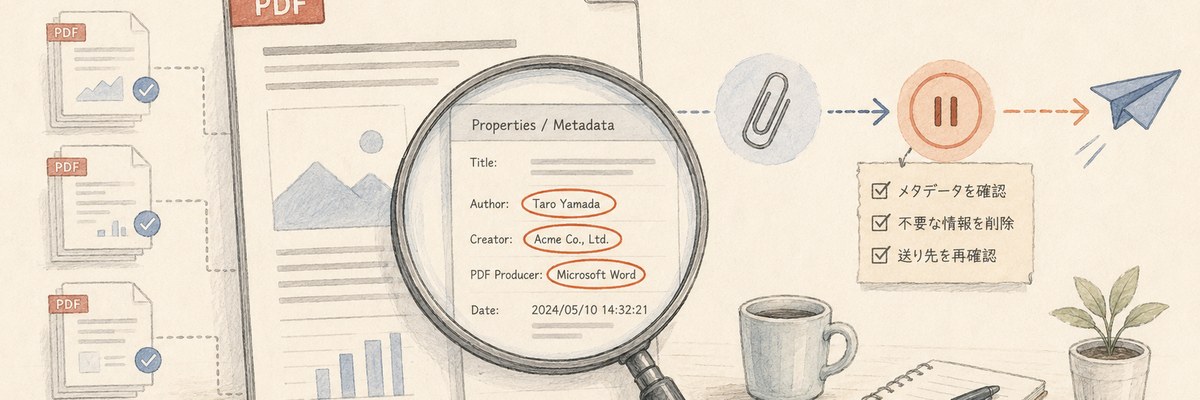
A colored-pencil illustration of a large magnifying glass held over a PDF, its lens enlarging a properties panel that lists the title, the author and the application the file was made in

The author name, the creating application and the other metadata inside a PDF can be read in Firefox from Document Properties. Nothing to install.

We then opened ten PDFs that happened to be on this machine. Two carried an author name; nine carried the name of the software. What survived was less about who made the file than about what made it.

The steps come first, the ten files after them.

How to check a PDF's metadata

  1. Drag the PDF onto a Firefox window
  2. Click ≫ (Tools) at the right end of the toolbar
  3. Choose Document Properties…, the last item in the menu

The dialog lists everything the file carries. In our case that was fourteen fields; empty ones show a -.

Four of them do most of the work: Title, Author, Creator (the application the document was written in) and PDF Producer (whatever converted it into a PDF).

These steps were verified in Firefox. Adobe Acrobat and Google Chrome put the dialog somewhere else and label things differently, and we did not test either. The fields themselves are the same, so look for whatever your own software calls "document properties".

Which fields to read

Of the fourteen, these are the ones that matter before sending a file.

FieldWhat goes in it
TitleThe document's own title, stored separately from the file name
AuthorThe name of a person or an organisation
CreatorThe application the document was written in
PDF ProducerWhatever converted it into a PDF
Creation Date / Modification DateWhen the file was made and last changed

There is no need to study them one by one. The point is narrower: look once, before sending, at what the file carries besides its text.

The rest are Subject and Keywords, plus file name, size, page count and PDF version — descriptions of the format rather than of you.

What we found in ten real PDFs

Described by kind only; contents withheld.

#KindAuthorCreator / Producer
1Government policy paper (13p)noneMicrosoft PowerPoint for Microsoft 365
2Technical specification (33p)noneLaTeX with hyperref / xdvipdfmx (0.1)
3Slide export (2p)noneKeynote / macOS Version 14.1 (Build 23B74) Quartz PDFContext
4Corporate handout (12p)noneSwitch 24
5Print-ready artwork (1p)noneAdobe Illustrator 29.0 (Windows) / Adobe PDF library 17.00
6Printed web page (1p)emptyMicrosoft: Print To PDF
7AI-generated document (1p)presentChatGPT / WeasyPrint 68.0
8AI-generated document (14p)presentChatGPT / WeasyPrint 68.0
9Document with no metadata (6p)nonenone
10Distributed report (49p)nonemacOS 14.6.1 (build 23G93) Quartz PDFContext

Two files named a person. File 6 sits in between: the Author key is there, but it holds an empty string. On screen, a viewer cannot show you the difference between that and a field which was never written.

The name of the software, by contrast, appeared in nine. Files 3 and 10 went further and recorded the OS version and build number. File 10 came from another company; its metadata says which macOS release that machine was running.

Files 7 and 8 name ChatGPT as the creating application, with WeasyPrint 68.0 as the producer. What a document was drafted with is legible without opening it.

Dates say something too. Creation timestamps end in an offset such as +09'00', present in seven of the ten.

Does it matter if something is there?

Metadata being present is not itself a problem. It exists so documents can be sorted and searched, and most of our ten were fine to pass along untouched.

Often no cause for concern:

  • A company document whose author field holds the company or team name
  • Internal material where knowing the writer helps
  • A file that names only the application, with no person attached

Worth a look before it leaves:

  • A document meant to carry no personal name
  • Anything published anonymously
  • Work produced on a personal machine and sent outside
  • A finished version going to someone outside the organisation

The decision belongs to whoever owns the file. These steps only put the material in front of you.

One dialog does not show everything

What appears in Document Properties is part of what a PDF holds.

A company name may not be shown. Some office suites write one into the file, yet it appeared in none of the fourteen fields. Open a file that carries one and the browser shows you nothing.

Annotation and comment counts are not shown either.

There is also this: the same PDF can show different values in different software, because a PDF can keep metadata in two places. One is the long-standing area called the information dictionary; the other is a later addition called XMP. Usually both hold the same values. They do not have to.

We built a test file with a different title in each. Firefox showed one; the extension we build showed the other, because the two read them in the opposite order. Edit one copy and not the other, and the name you see depends on the software you opened it in.

A high annotation count is not a comment count

Four of the ten files contained annotations — and every one of them was a link, from a table of contents or a URL. Not a single human comment among them (file 2 holds 77; file 8 holds 153).

"Annotation" is a wide word in the PDF specification. A large number is not evidence that review comments were left behind.

Saving again can leave old values behind

PDFs can be saved incrementally, appending the changes to the end of the file rather than rewriting it. We read the raw bytes of a file saved that way and the previous title was still sitting in them, while the viewer displayed only the newer one. One of our ten carried those append markers.

What the screen shows and what the file contains are not the same question.

If you want it removed

Document Properties is a reading surface, not an editor. Removing values means exporting again from the original application — Word, PowerPoint, Illustrator — or using a PDF editor's own cleanup feature.

Even then, something can survive, for the two reasons above: one of the two copies may be left untouched, and an older revision may still sit inside the file.

For anything sensitive, reopen the cleaned file in a different tool and look again. That is as far as our testing goes — we did not verify what any particular removal feature actually clears.

What we tested on, and what we did not

  • Firefox 148.0.2 on Linux, with the interface in English
  • File contents were tallied separately with Python and pypdf 6.14.2
  • Checked on 11 August 2026

The steps were performed through browser automation rather than by clicking. We did not verify how the menus look or feel on screen. The field names quoted here were read out of the dialog itself.

Not tested:

  • Adobe Acrobat. Its field names and menu paths differ
  • Chrome's built-in viewer
  • How the dialog is labelled in other interface languages
  • Password-protected PDFs. Firefox stopped at the password prompt and never reached the properties dialog
  • Hidden layers, embedded attachments and text underneath redaction boxes

Names and addresses written into the visible text are a separate matter; this is only about metadata.

Doing this every time does not stick

Everything above works in a browser alone. No extra tooling required.

But knowing how to check and actually checking every time are two different things. Each check means going back to a file you have already attached, opening it again, and walking two levels into a menu. That detour is the first thing to disappear when you are in a hurry. It seemed more realistic to assume it will be skipped.

So we built an extension that surfaces the information at the moment a file is attached.

For PDFs it reports six things: title, author, company, creating application, PDF producer, and annotation count. Two of those — company and annotation count — are exactly what the browser dialog leaves out.

The same extension handles photos. The equivalent walkthrough for those is checking a photo for location data before you upload it.

For Excel files it also reports hidden sheets and hidden rows or columns. What actually survives hiding a sheet is something we measured separately.

It reports and stops there. It does not delete metadata or rewrite the PDF. The work happens in the browser, and files are not sent anywhere.

Send it, re-export it, or decide the information is harmless — that call belongs to the person sending. The tool exists to make the information visible again in time to make it.

Tags: PDF・Metadata・pre-send checks

← All notes